
Reprocessing
Insert, modify, or remove ad breaks in an existing asset and save the result as a new asset.
Content reprocessing allows you to insert ad breaks into an existing Uplynk asset. You can open an asset, create, read, update, and delete ad breaks, and save the result as a new asset.
Reprocessing re-encodes modified segments and may result in additional encoding costs.
The reprocessing screen consists of the following panels and sections:
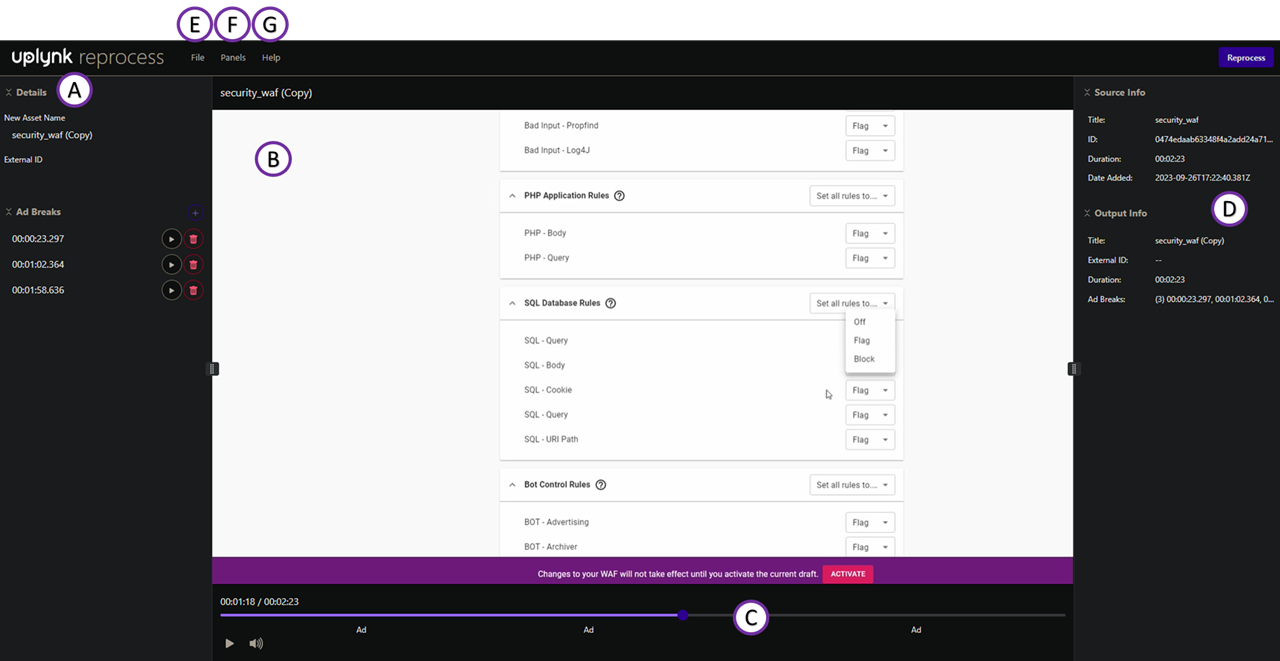
| Section | Feature | Details |
|---|---|---|
| A | Details | Modify the reprocessed asset's name, ID, and ad breaks. |
| B | Player | Play back video with ad breaks. |
| C | Seek Bar | View ad breaks in blue. Select a position on the seek bar, then select + Ad Break to use that timestamp for a new ad break. |
| D | Source/Output Info | Displays the title, ID, duration, ad-break timestamps, and date of the original asset, as well as the title, ID, duration, and ad-break timestamps of the reprocessed asset. |
| E | Files | Manage reprocessing files: Open: Open a different file. Reprocess: Reprocess the original asset and create a new one with the desired changes. Reset All Changes: Revert all changes and return the asset to its original state. |
| F | Panels | Select which panels to show or hide. |
| G | Help | Learn Shortcut Keys: View a list of available keyboard shortcuts. Documentation: Link to relevant content. |
Choose an Asset
- Locate the Asset: Find the asset you want to reprocess. Refer to Content Management for information on the CMS and Search features.
- Create a Copy: Select Reprocess in the top-right corner to create a copy.
- Rename the Content: In the Details section, enter a new name in the New Asset Name field.
- Optional: Enter an External ID if applicable.
Insert New Ad Break
- Optional: Identify a specific point in time for the new ad break by selecting the desired location in the seek bar at the bottom of the player.
- Add New Ad Break:
- In the Ad Breaks section, select the + button to insert a new ad break.
- Enter the timestamp for the new ad break.
- Select Insert to create the new ad break marker.
- Save Changes: Select Reprocess in the top-right corner to save your changes.
Modify/Delete Existing Ad Break
- View/Modify Existing Ad Breaks:
- Go to the Ad Breaks section.
- Select the Play button next to an existing ad break to jump to that point in the video.
- To modify, enter a new timestamp value for the ad break.
- Delete an Ad Break: Select the trashcan icon next to an ad break to remove it.
Updated about 2 months ago
Did this page help you?