
Sign Playback URL
Generate a digitally signed playback URL to control when and how content may be played.
Learn how to generate a signed playback URL that controls when content may be played. This tutorial covers streaming a single asset, but the same steps apply to live channels and live events.
Software Prerequisites: PHP-enabled web server
Knowledge Prerequisites
- Basic web server administration
- Basic HTML coding
- Basic PHP coding
Key Steps
- Create a media player within a PHP file.
- Add code to generate an authorized playback URL.
- Test playback.
Step 1: Verify PHP Installation
This tutorial uses PHP to generate an authorization token that allows a media player to play back content. Since the code executes on the server, PHP must be installed on the web server hosting the media player. This step verifies that PHP is properly installed.
Although this tutorial uses PHP, you can generate authorization tokens using any server-side language or environment.
-
Open a text editor.
-
Type the following code:
<?php echo "Hello, World!"; ?> -
Save the file as
test.php. -
Upload it to a directory on your web server that can execute PHP code.
-
Load
test.phpin a web browser.Sample URL:
http://www.example.com/test.php -
Verify that the web page looks similar to the following illustration:
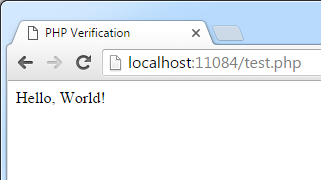
If the web page looks different, check the following items:
- Verify that the code in test.php matches the code above.
- Verify that PHP is properly installed on your web server.
Step 2: Implement a Media Player in PHP
A media player is required to play back content. For your player options, see the media player documentation.
-
Save your player page as
player.phpin the directory wheretest.phpwas uploaded. -
From the CMS, navigate to the Content tab, select the asset, clear the Require a token for playback option, and then select Save. This removes potential obstacles while testing.
-
Load
player.phpin a web browser to verify that it can play back content.
Step 3: Re-enable the URL Signature Requirement
You cleared the digitally signed playback URL requirement in the previous step to remove potential obstacles in a test environment. Once the asset is ready for production, re-enable this requirement to prevent unauthorized playback.
-
From the CMS, navigate to the Content tab and then select the asset associated with
player.php. -
Mark the Require a token for playback option.
-
Select Save.
-
Reload
player.php. It should no longer allow playback, as a digitally signed playback URL is now required.
Step 4: Implement Token Generation
Update the PHP file to generate a playback URL that authorizes playback for any viewer by:
-
Adding a function that:
- Authenticates to our system using your API key.
- Sets the requested content's Internet media type to "a."
- Extracts the content ID from the playback URL.
- Creates a hash value from the viewer's IP address.
- Expires the signed playback URL after 300 seconds (recommended expiration time is 20 to 60 seconds).
- Creates a token based on the above information that signs the playback URL.
- Generates a signed playback URL. Learn more about signing a playback URL.
-
Calling the above function when requesting content playback. This inserts an authorized playback URL into the media player code.
-
Open
player.phpin a text editor. -
Add the following PHP function at the beginning of the file:
<?php function Call($uri) { $SECRET = 'API_Key'; $msg = array(); $msg['exp'] = time() + 300; // Expire 5 minutes from now. $msg['ct'] = 'a'; // Asset $parts = parse_url($uri); list($part1, $part2) = explode('.', $parts['path']); $msg["cid"] = substr($part1, 1); $msg['iph'] = hash('sha256', $_SERVER['REMOTE_ADDR']); $msg -
Copy your API key.
- Navigate to the Integration Keys page by selecting the Settings tab and then selecting Integration Keys from the side navigation tab.
- Your API key(s) are listed under the API Keys section.
-
Replace the API_Key variable with your API key as shown below on line 4.
<?php function Call($uri) { $SECRET = '1234567890abcdefghijklmnopqrstuvwxyzABCD'; $msg = array(); $msg['exp'] = time() + 300; // Expire 5 minutes from now. $msg['ct'] = 'a'; // Asset $parts = parse_url($uri); list($part1, $part2) = explode('.',$parts['path']); $msg["cid"] = substr($part1,1); $msg['iph'] = hash('sha256', $_SERVER['REMOTE_ADDR']); $msg['sig'] = hash_hmac('sha256', http_build_query($msg), $SECRET); return $uri . '?' . http_build_query($msg); } ?> <!DOCTYPE html PUBLIC "-//W3C//DTD HTML 4.01 Transitional//EN"> <html> ... </html> -
Modify the function that initiates playback as indicated on line 10. Replace the playback URL with the one that corresponds to the desired content.
<?php function Call($uri) ... <body> <p> Hello, World! </p> <!-- Pass the signed playback URL to your media player. --> <script type="text/javascript"> var playbackUrl = '<?php echo Call('https://content.uplynk.com/468ba4d137a44f7dab3ad028915d6276.m3u8'); ?>'; </script> </body> </html> -
Save player.php.
-
From your web browser, refresh player.php to play back your content. Playback is authorized after the system verifies that a valid token was included with the request.
Step 5 - Optional. Validate Tokens
You can add server-side logic to selectively allow playback, such as requiring login credentials or restricting content to certain regions. To verify that valid tokens are being generated, use the CMS token validation feature.
A digitally signed playback URL expires after a given duration. The token generated in this tutorial expires after 300 seconds (i.e., 5 minutes). Please complete this step within 300 seconds.
-
Generate a new token by refreshing
player.phpfrom your web browser. -
View the source code for
player.phpfrom your web browser. -
Find and copy the entire playback URL, including its query string:
var playbackUrl = 'https://content.uplynk.com/de01164a50d04847b5624485dae1dac3.m3u8?exp=1450813114&ct=a&cid=de01164a50d04847b5624485dae1dac3&iph=eff8e7ca506627fe15dda5e0e512fcaad70b6d520f37cc76597fdb4f2d83a1a3&sig=90c34a424037f4f85733f6487539da0a39fefa82ff02164ec2f811467773ace2'; -
Navigate to the Integration Keys page.
-
Paste the playback URL into the field provided within the Test Playback Tokens section.
-
Select Test Token Auth URL.
-
Review the results of the playback token test.
Updated about 2 months ago