
Playback URLs for Assets
Build playback URLs for a single asset by asset ID or external ID, target an ad break, clip by time, and play multiple videos.
Assets
Use either of the following playback URL types to stream an asset:
- Asset ID (GUID): Identifies an asset by its system-defined ID.
- External ID (Asset): Identifies an asset by its external ID.
Key Information
- By default, these playback URLs play an entire asset from start to finish. You can restrict playback to a portion of an asset.
- A media player may play multiple assets within a single viewing experience by identifying each desired asset within the playback URL.
Asset ID
Upon creation, an asset is assigned a 32-character hexadecimal unique identifier known as an asset ID. You can view this ID via the CMS, a slicer's output, logs, the Preplay API, or the SegmentMap interface. Construct a playback URL by including this asset ID.
HLS Syntax: https://content.uplynk.com/{Asset ID}.m3u8
DASH Syntax: https://content.uplynk.com/{Asset ID}.mpd
Sample playback URL (HLS):
Use the following playback URL to stream an asset with an ID of 7771125f336c4e229c20f7307f8c3122 via HLS.
https://content.uplynk.com/7771125f336c4e229c20f7307f8c3122.m3u8
Find Asset ID
- Navigate to the CMS library by selecting the Content tab.
- Select the desired asset.
- The asset ID is listed under the GUID label.
External ID (Asset)
Construct a playback URL by including both of the following values:
-
Workspace ID: The Workspace ID corresponding to the owner of the content. This was formerly known as the User ID.
- Your CMS Libraries: Specify your Workspace ID.
- Shared CMS Libraries: Specify the Workspace ID of the user that shared the library.
-
External ID (Asset): A custom ID assigned to an asset. Typically, this ID reflects a unique value defined in an external database.
- An external ID may only consist of alphanumeric characters, dashes, and underscores. All other characters, including spaces, are disallowed.
- External IDs are not tested for validity or uniqueness. An arbitrary matching asset will play back when multiple assets within a single CMS account share the same external ID.
- Use the
_replace:prefix while slicing to reuse an external ID when re-encoding a new version of an existing asset.
-
HLS Syntax:
https://content.uplynk.com/ext/{Workspace ID}/{External ID}.m3u8 -
DASH Syntax:
https://content.uplynk.com/ext/{Workspace ID}/{External ID}.mpd -
Sample Playback URL (HLS): Use the following playback URL to stream an asset with an external ID of
promo_video_12that is owned by a user whose ID isf8c29a5f6c4e229c20f7307f8c3122ab.https://content.uplynk.com/ext/f8c29a5f6c4e229c20f7307f8c3122ab/promo_video_12.m3u8
Find an Asset's External ID
- Navigate to the CMS library by selecting the Content tab.
- Select the desired asset.
- The external ID is listed under the External ID option.
Segment (Ad Breaks)
Use this playback URL type to stream a segment of an asset that contains ad breaks.
-
Server-side ad insertion ensures seamless ad integration. This playback URL type is typically reserved for legacy client-side ad integrations or non-video ad integrations where video playback is temporarily suspended.
-
Using this playback URL type for assets undergoing slicing or encoding is strongly discouraged.
-
Playback by segment is only supported for assets that contain ad breaks.
-
This playback URL type is only supported for HLS playback.
-
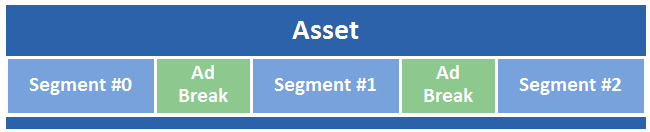
An asset that contains one or more ad breaks will be split into segments.
-
Segments are identified by a 0-based sequential number. The first segment has an index of 0, the second has a value of 1, the third has a value of 2, and so on.
Segment playback URL (Asset ID) syntax:
https://content.uplynk.com/segment/{Segment Number}/{Asset ID}.m3u8
Segment playback URL (External ID) syntax:
https://content.uplynk.com/segment/{Segment Number}/ext/{Workspace ID}/{External ID}.m3u8
Sample Playback URLs
An asset with a single ad break will be split into two segments. Sample playback URLs for each segment are listed below.
Sample asset ID-based playback URL (first segment):
https://content.uplynk.com/segment/0/7731125f336c4e229c20f7307f8c3122.m3u8
Sample asset ID-based playback URL (second segment):
https://content.uplynk.com/segment/1/7731125f336c4e229c20f7307f8c3122.m3u8
Start/Stop Playback by Time or Slice
Restrict playback by specifying a starting or stopping point via the following customization parameters:
- Starting Point: Specify a starting time in seconds (
start) or slice numbers (sstart). - Stopping Point: Specify a stopping time in seconds (
stop) or slice numbers (sstop).
See General Parameter descriptions for more information.
Play Multiple Videos
You can define multiple videos within a playback URL. This combines them into a single playlist (i.e., m3u8), allowing a media player to play them back as if they were a single asset.
An alternative method of playing multiple videos is to create a virtual linear playlist. The benefits of using a virtual linear playlist instead of manually defining multiple assets within a playback URL are faster player load times and higher monetization by eliminating or reducing ad request timeouts, stale ads, and the unnecessary depletion of ad inventory.
Key Information
-
Both asset ID and external ID playback URLs may point to multiple assets by adding a comma-delimited list of each desired asset and then setting the file name to
/multiple.m3u8(HLS) or/multiple.mpd(DASH).-
Asset ID-based playback URL syntax:
https://content.uplynk.com/{Asset ID 1},{Asset ID 2},{Asset ID n}/multiple.{Extension}
(e.g.,https://content.uplynk.com/7731125f336c4e229c20f7307f8c3122,6eb8d50020884a1c8bd4c11a38406f14/multiple.m3u8) -
External ID-based playback URL syntax:
https://content.uplynk.com/ext/{Workspace ID}/{External ID 1},{External ID 2},{External ID n}/multiple.{Extension}
(e.g.,https://content.uplynk.com/ext/357c9b19d40447989389e6a20f19d55e/pre-show,show,post-show/multiple.m3u8) -
Sample asset ID-based playback URL: The following sample playback URL plays two assets whose IDs are
7731125f336c4e229c20f7307f8c3122and6eb8d50020884a1c8bd4c11a38406f14.https://content.uplynk.com/7731125f336c4e229c20f7307f8c3122,6eb8d50020884a1c8bd4c11a38406f14/multiple.m3u8 -
Sample external ID-based playback URL: The following sample playback URL plays three assets whose external IDs are
pre-show,show, andpost-show. This example assumes that these assets belong to a user whose Workspace ID is357c9b19d40447989389e6a20f19d55e.https://content.uplynk.com/ext/357c9b19d40447989389e6a20f19d55e/pre-show,show,post-show/multiple.m3u8
-
-
The specified assets play back-to-back in the listed order. Ad breaks associated with each asset behave as expected.
-
The total duration of the assets requested using a single playback URL must be less than 16 hours.
-
All assets defined within a single playback URL must be owned by the same account.
-
Do not specify an asset more than once per playback URL.
-
Assets that are being sliced or encoded cannot be combined and should not be included in a playback URL that points to multiple assets.
-
Use the
ad.caidquery string parameter to define the asset ID that will be sent to an ad server.
Updated about 2 months ago