
Live Channel Ad Breaks and Content Replacement
Enable scheduling on a live channel, schedule ad breaks and assets, and override the source.
Ad Breaks and Content Replacement
Insert ad breaks or replace content within your live feed through the following methods:
-
Schedule: Add an entry (i.e., an asset, ad break, or Live Slicer) to the live channel's schedule to schedule content replacement or an ad break.
-
Manual Override: Manually override a live channel's source to another Live Slicer.
-
Live Slicer Commands
- Ad Break Command: Use either the Live Slicer API's
replace_podorpod_startendpoint to add dynamic ads to your live stream. - Content Replacement Command: Use the Live Slicer API's
replace_contentendpoint to replace live content with an asset.
- Ad Break Command: Use either the Live Slicer API's
Upon encountering an ad break or content replacement command, the Live Slicer enters a blackout state and stops capturing the live signal for a specified duration. This creates a gap in the live stream that may be automatically filled at playout with an asset or dynamic ads.
Schedule Ad Breaks and Assets
Certain features are incompatible with live channels that support schedule entries.
You must decide whether a live channel may use schedule entries upon its creation. You cannot enable or disable the scheduling feature on existing live channels.
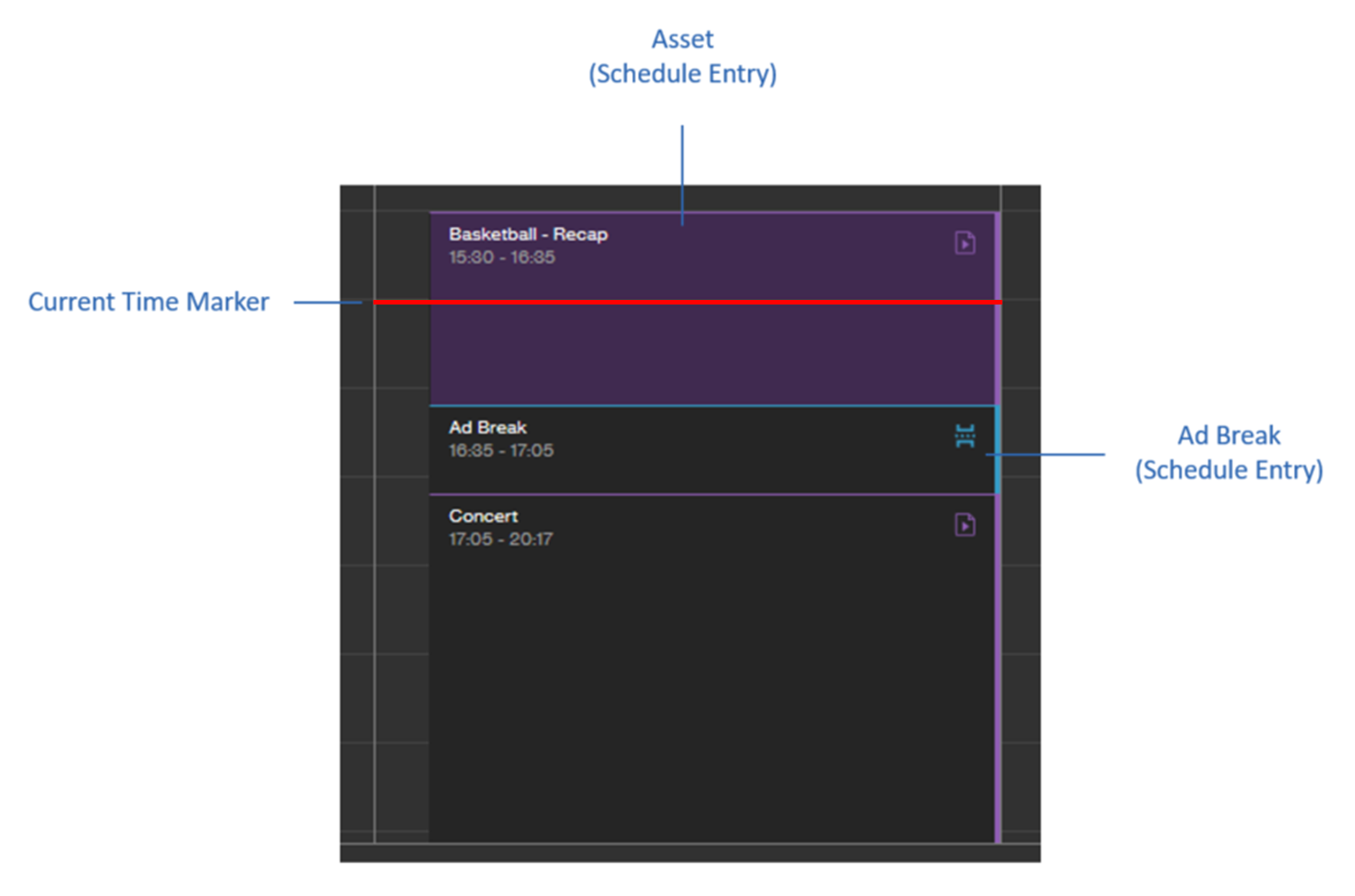
Schedule ad breaks, assets, and Live Slicers within your live channel's timeline by adding individual entries or a playlist to your schedule. A schedule entry identifies a point-in-time within the live linear feed that will be replaced with an ad break, an asset, or the feed from a specific Live Slicer during playout.
Enable Scheduling
Enable scheduling on a live channel during its creation by marking the Enable Scheduling option. A calendar icon appears in the top right corner of the live channel's tile when scheduling is enabled.
You cannot enable or disable the scheduling feature on existing live channels.
Source Override
You may manually override a live channel's source to another Live Slicer. At any point, you may return the live channel to the schedule. This allows your viewers to join in progress (JIP) the regularly scheduled programming.
This capability requires a live channel that supports schedule entries .
Manually overriding a live channel's source allows you to quickly switch to different content (e.g., breaking news).
Overriding a live channel's source does not modify your schedule or your live channel's default Live Slicer.
Manually Override a Live Channel's Source
- Load the desired live channel.
- From the right-hand pane, set the Override Content option to the case-sensitive ID of the Live Slicer that will serve as the live channel's new source.
- Select Yes, Override to confirm that you would like to override the live channel's source.
Stop Overriding a Live Channel's Source
- Load the desired live channel.
- From the right-hand pane, select Return to Schedule.
- Select Yes, Return to confirm that you would like to return to regularly scheduled programming.
Updated about 2 months ago