
Live Event Playback and Latency
Distribute a media player for a live event and choose the playback latency profile.
Set up a Media Player
A single playback URL allows the playback of the live event as a live stream and on-demand content.
To set up a media player for use with a live event
-
Generate a playback URL using either the live event's ID (i.e., GUID) or external ID.
- Event ID: An event ID is automatically generated upon creating a live event.
Copy a playback URL by navigating to the Live Events page, viewing the desired live event, clicking the Playback tab, and then clicking copy from under the HLS URL option.
Syntax: https://content.uplynk.com/event/LiveEventID.m3u8
- External ID: An external ID may be assigned to a live event upon its creation or modification.
Syntax:https://content.uplynk.com/event/ext/<OwnerID>/LiveEventExternalID.m3u8
-
If the live event configuration requires a token for playback, then create a script that signs the playback URL.
-
Point the media player to the live event using the above playback URL.
-
Distribute the media player to the desired viewers.
If you are setting up a HLS player, you may add support for fast forwarding, rewinding, or pausing and resuming through the Live Timeshifting capability.
Latency
Latency measures the delay between the capture of the source video and when it is displayed to the viewer.
If you do not see the Playback Latency option, contact Support.
The following illustration provides an overview of components involved in the workflow from video capture to playback.
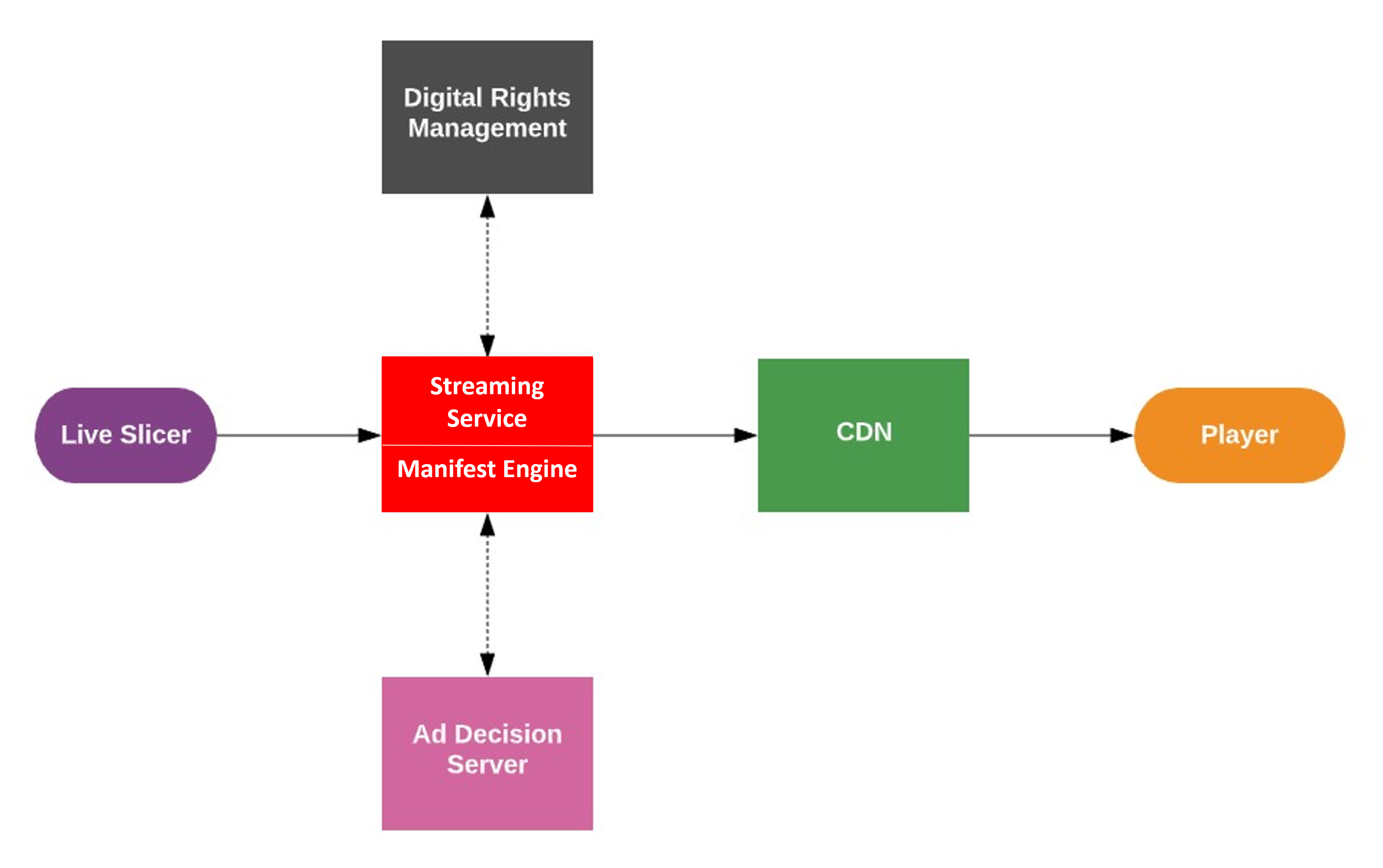
A short explanation of how each of the above components adds latency is provided below.
| Component | Latency Factors |
|---|---|
| Slicer | The amount of time it takes to slice and deliver processed media to our Streaming service. This may be exacerbated by using underpowered hardware or insufficient bandwidth for your encoding profile. |
| Streaming Service | The amount of time it takes to decode, encode, and package sliced media into an adaptive bitrate format. |
| Digital Rights Management (DRM) | The amount of time it takes to request and generate licenses for content protected by DRM. |
| Ad Decision Server |
|
| CDN | The amount of time it takes to cache and deliver your stream to the player. |
| Player | The amount of time it takes to initialize and then play your stream. This may be exacerbated by clients that use underpowered hardware or that have insufficient bandwidth. |
| Manifest Engine | Decisioning logic that controls the timing and creation of individual manifests for playback by users. |
Best Practices for Reducing Latency
Reduce latency by applying the following best practices:
The following optimizations are listed in descending order according to the degree to which they will reduce latency.
| Type | Optimization(s) |
|---|---|
| Playback Profile |
|
| Player | Client
|
| Encoding Profile | Two Second Media Segments
|
| Slate | Re-encode Slate (Two Second Media Segments)
|
| Slicer |
|
| Ads |
|
| Automation / Playout System | Ad Break Notifications: Ensure timely ad breaks in the video stream with SCTE triggers for ad decisioning. |
| Adaptive Bitrate Streaming | Format: Supports both DASH and HLS. |
| Cloud | Network Connection: Optimize egress for encoded media with newer streaming protocols like SRT and RIST, minimizing latency based on network round-trip time. |
Select the Playback Latency
Default latency for Live Channels and Live Events is 60+ seconds. To reduce latency to ~15 seconds, refer to the Playback Latency for channels and events for setup instructions.
Latency Options
- Default: ~60 seconds
- Low: Low 20s, 5+ second buffering, Missing Content Slate (MCS) is possible
- Lower: Upper teens, 2+ seconds buffering, MCS is possible
- Lowest: As low as 15 seconds, minimal buffering, no MCS
Different protocols and platforms may affect latency beyond the control of Edgio.
Important Considerations
- Many factors are in play for reduced latency. Any latency numbers referenced by Edgio documentation are estimates. Actual results may vary.
- Reducing latency does not currently work with Time Shifting.
- Inconsistent Slate Slice Duration is not recommended and will give unpredictable latency results.
- Four-second profiles may still work but won't achieve the desired latency results and are unlikely to produce any video at the lowest setting.
- Two-second profiles without Playback Latency settings will give default delays.
- Existing V1 channels will not see the Playback Latency drop-down.
- MCS latency can only be removed via ad-break opportunities or new sessions.
- Player buffering cannot be controlled via Edgio's Streaming service.
- Platform specificity may vary latency by multiple seconds.
- Many factors contribute to latency, so playback latency may vary.
- If using a Channel Scheduler with historical, four-second segment assets, you cannot schedule those assets onto an Edgio-enabled channel.
- The act of 'Creating' a CSL slicer will always create (/override) a profile to slicer ID mapping, even if using the default profile. Slicer Resets will not update the mapping.
- Due to continued testing, new technology, and other factors, playback profile parameters used by the manifest engine may change from time to time, without notice.
Updated about 2 months ago