
Play Assets and Playlists
Play a single asset, audio-only content, and video or audio playlists in the Uplynk Player.
Single Asset Playback
The following example shows how to play back a single Uplynk asset using the Uplynk Player:
<div id="uplynk_player"></div>
<script charset="UTF-8" src="https://ovp-static.uplynk.net/player.min.js"></script>
<script>
  UplynkPlayer.embed({
    "height": "321",
    "width": "540",
    "autoTitle": "item",						// Sets title to asset name
    "mediaId": "uplynk_external_id",
    "orgId": "uplynk_user_id",
    "enableCookies": false,
    "componentPath": "https://ovp-static.uplynk.net/components",    // Needed for VTT captions
    "playerId": "uplynk_player",
    "playerForm": "Standard"
  });
</script>
In the above example, orgId is the Uplynk Workspace ID (formerly User ID) and passed with the embed. The mediaId is the Uplynk External ID.
If mediaId is an Uplynk Asset ID (GUID) instead of an Uplynk External ID, then orgId is not required.
You can set height or width to a pixel value or to "100%" (or any percentage) to fill the screen as desired.
The componentPath parameter is only required to decode captions. If your video files do not contain captions, you can omit it.
Cookies are disabled in the player by default. The enableCookies parameter is shown above to demonstrate its use.
The player is also available as
LimelightPlayerUtilfor backwards compatibility.
Single Asset Playback for Audio-Only
Audio-only playback does not require the Uplynk Player to display a video window.
The following example shows how to play back a single audio-only Uplynk asset:
<div id="player_audio"></div>
<script charset="UTF-8" src="https://ovp-static.uplynk.net/player.min.js"></script>
<script>
UplynkPlayer.embed({
  "width": "300", // Default audio player width
  "height": "auto", // Should be auto when adding auto title
  "playerId": "player_audio",
  "orgId": "uplynk_user_id",
  "mediaId": "uplynk_external_id",
  "autoTitle": "item",
  "playerForm": "AudioPlayer",
  skin: {
    // New title related style options
    playerTitleFont: "18px sans-serif",
    playerTitleColor: "#FFFFFF",
    playerTitleBackground: "#000000"
  },
  "controlBar": {
    "audioTrackButton": true,
    "fullscreenToggle": false
  }
});
</script>
In the above example, orgId is the Uplynk User ID and passed with the embed. The mediaId is the Uplynk External ID. For playerForm, use AudioPlayer.
When using a title control such as autoTitle, it is recommended to have height set to "auto"
Using Playlists
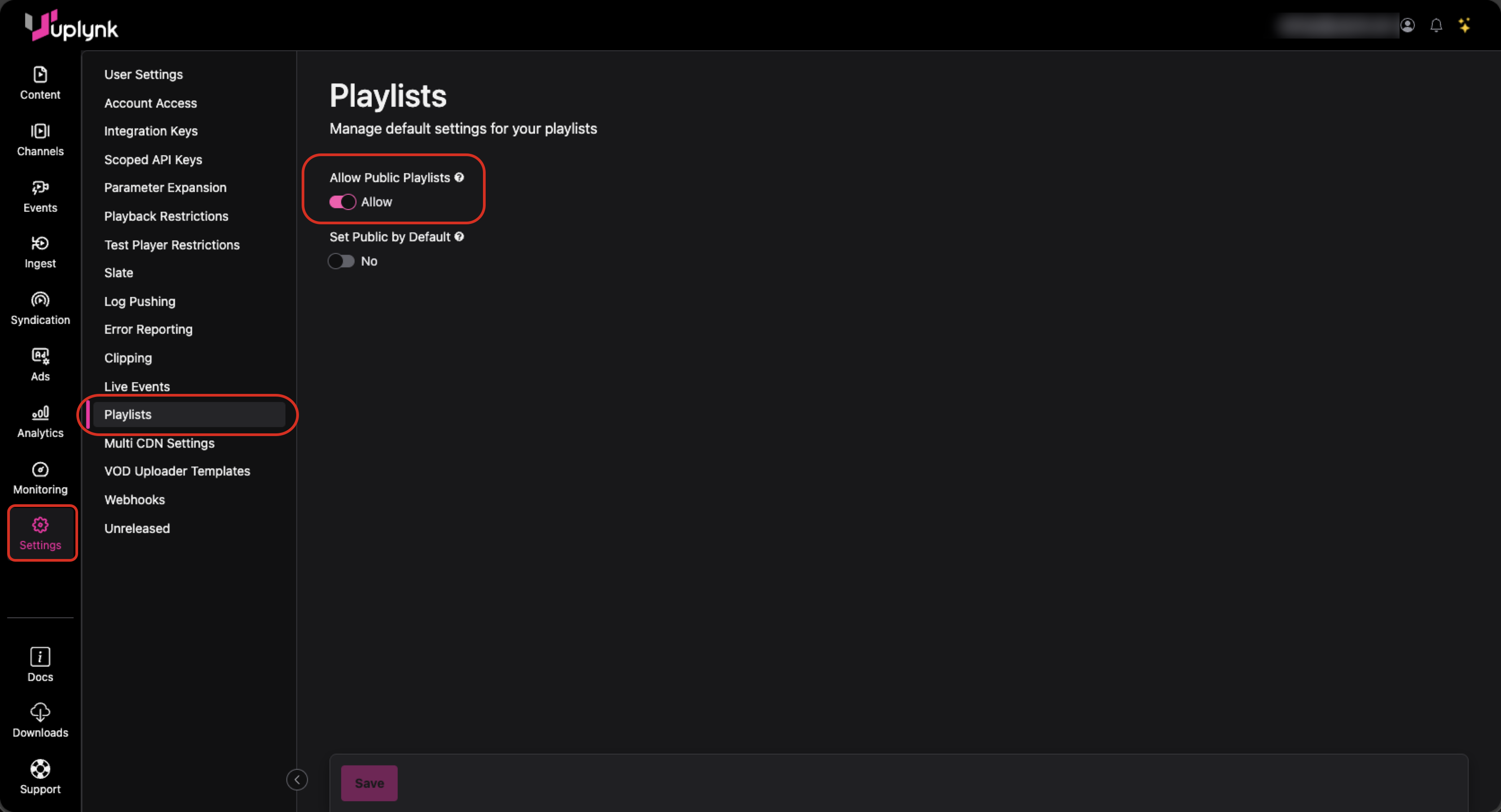
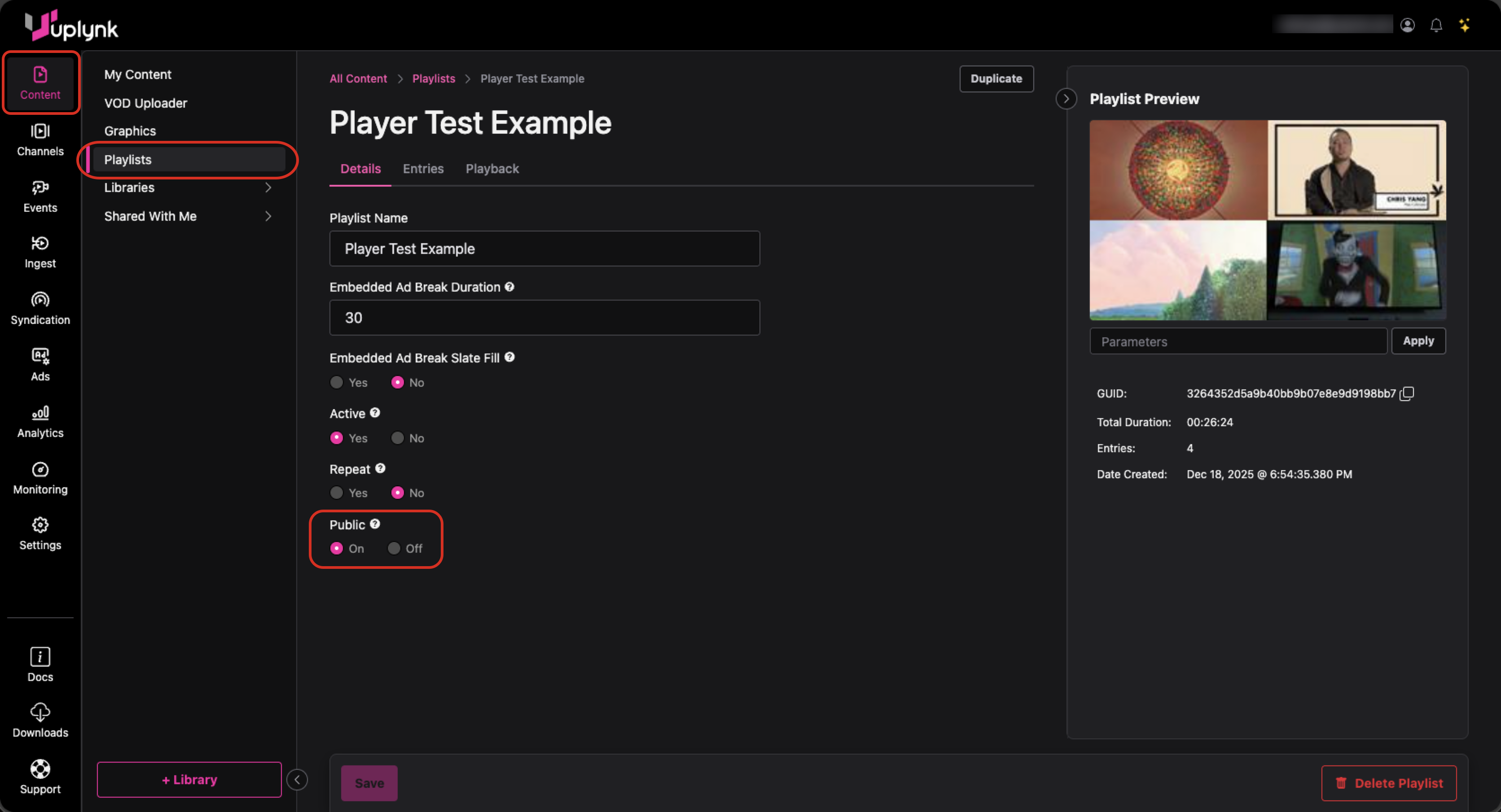
For playlist information to be viewable by the Uplynk Player, the playlist must be public. Account-level settings control whether public playlists are allowed and whether new playlists default to public or private. If a playlist is labeled public but the account settings disallow public playlists, the account settings override the individual playlist setting.
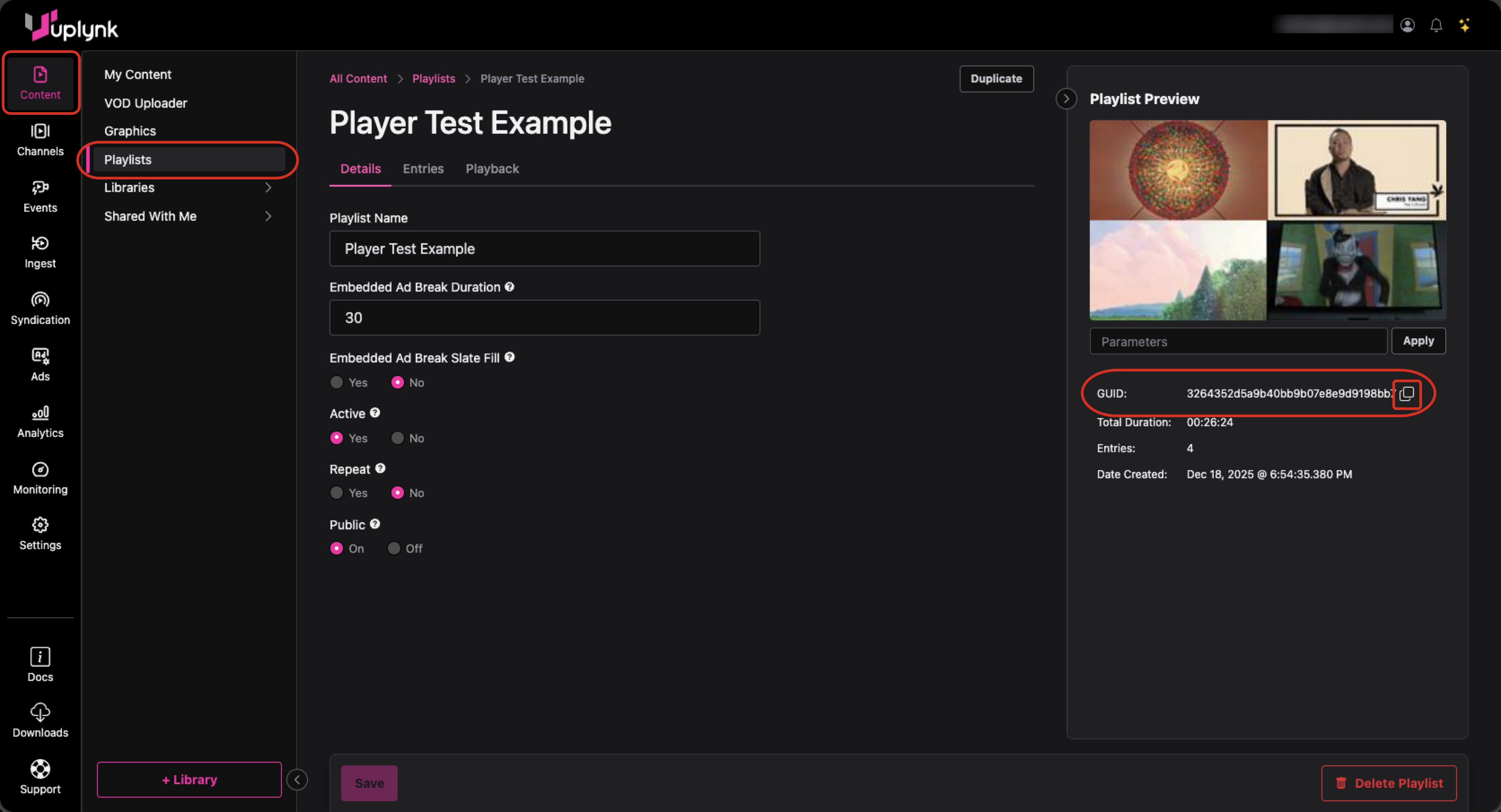
Each playlist has a Playlist ID as shown below. You can copy it by selecting the double-box icon next to the GUID in the Playlist Preview area.
The account settings for playlists are shown below. These settings may override any individual playlist settings.
Individual Uplynk playlists can be made public or private as shown below.
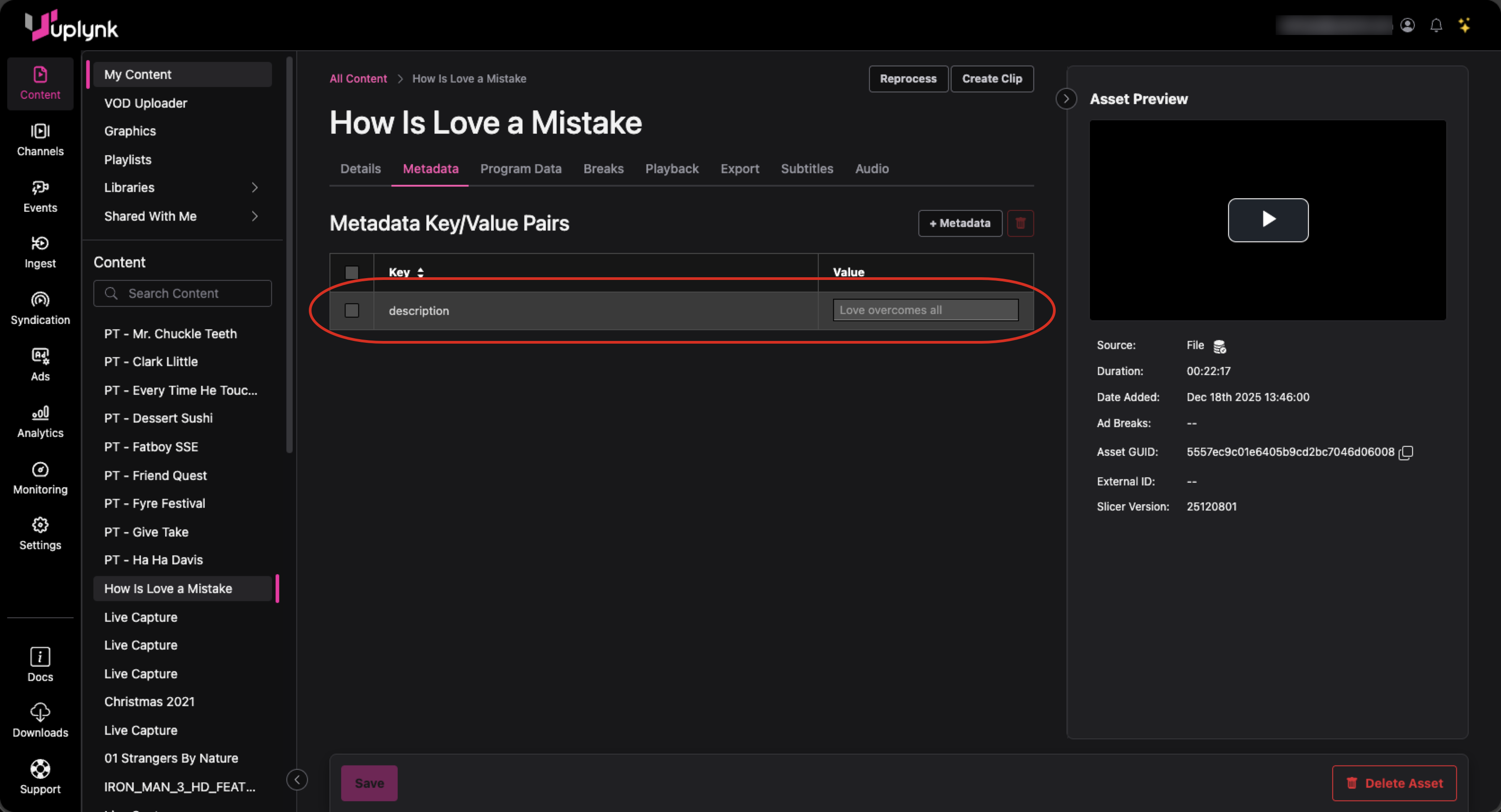
Asset Descriptions in Playlists
To display an asset description in addition to the asset title, add a description metadata field to the asset as shown below.
Playing Video Playlists
The following example shows how to play back an Uplynk video playlist using the Uplynk Player (horizontal format):
<div id="player_playlists"></div>
<script charset="UTF-8" src="https://ovp-static.uplynk.net/player.min.js"></script>
<script>
UplynkPlayer.embed({
  "playerId": "player_playlists",
  "channelId": "uplynk_player_id",
  "showPlaylist": true,
  "enableCookies": false,
  "playlistOrientation": "right",
  "playerForm": "HorizontalPlaylist"
});
</script>
In the above HTML, for channelId, use the Playlist ID. For playerForm, use HorizontalPlaylist.
The following example shows how to play back an Uplynk video playlist (vertical format):
<div id="player_playlists"></div>
<script charset="UTF-8" src="https://ovp-static.uplynk.net/player.min.js"></script>
<script>
UplynkPlayer.embed({
  "playerId": "player_playlists","channelId": "uplynk_player_id",
  "showPlaylist": true,
	"enableCookies": false,
	"playerForm": "VerticalPlaylist"
});
</script>
In the above HTML, for channelId, use the Playlist ID. For playerForm, use VerticalPlaylist.
When testing playlist playback, serve the HTML from a web server rather than opening it directly in the browser. Thumbnail images for assets do not appear when running locally but display correctly from a web server. On macOS, you can use "Simple Web Server" (https://simplewebserver.org) for this purpose.
Playing Audio-Only Playlists
Basic Audio-Only Playlist Playback
The following example shows how to play back an Uplynk audio-only playlist:
<div id="audio_only_playlist_player"></div>
<script charset="UTF-8" src="https://ovp-static.uplynk.net/player.min.js"></script>
<script>
UplynkPlayer.embed({
  "playerId": "audio_only_playlist_player",
  "channelId": "uplynk_player_id",
  "showPlaylist": true,
  "enableCookies": false,
  "playerForm": "AudioPlaylistPlayer"
});
</script>
In the above HTML, for channelId, use the Playlist ID. For playerForm, use AudioPlaylistPlayer.
When testing HTMLs that play back playlists, the HTML must be run from a web server rather than just running locally in the browser. When run from the browser directly, the thumbnail images for the assets do not appear. The thumbnail images appear correctly when running from a web server. On the Mac, "Simple Web Server" (https://simplewebserver.org) can be used for this purpose.
Audio-Only Playlist Playback with Auto-Height and Title
In May 2025, the ability to have auto-height and title were added to audio-only playlist playback. The following example shows how to play back an Uplynk audio-only playlist with auto-height and title:
<div id="uplynk-player-container"></div>
<script charset="UTF-8" src="https://ovp-static.uplynk.net/player.min.js"></script>
<script>
    UplynkPlayer.embed({
        "playerId": "uplynk-player-container",
        "playerForm": "AudioPlaylistPlayer",
        "skin": {
            // New title related style options
            "playerTitleFont": "18px sans-serif",
            "playerTitleColor": "#FFFFFF",
            "playerTitleBackground": "#000000"
        },
        "height": "auto",                 // This enables auto-height mode
        "title": "Auto-Height Player",    // New title param
        "channelId": "uplynk_player_id"
    });
</script>
In the above HTML, for channelId, use the Playlist ID. For playerForm, use AudioPlaylistPlayer.
When testing HTMLs that play back playlists, the HTML must be run from a web server rather than just running locally in the browser. When run from the browser directly, the thumbnail images for the assets do not appear. The thumbnail images appear correctly when running from a web server. On the Mac, "Simple Web Server" (https://simplewebserver.org) can be used for this purpose.
Updated about 2 months ago