
Ads
Monetize content with server-side ad insertion: how it works, third-party ad servers, setup, and ad metadata.
Monetize your content by inserting ads. Here you'll learn about third-party ad servers, ad-specific metadata, ad breaks, prebid, and ad verification. You'll also find universal ad configurations and debugging, as well as details on how to work with Google Ad Manager and Freewheel.
Ad insertions may take place:
- Prior to Initial Playback: Pre-roll ads play before the viewer joins the live stream.
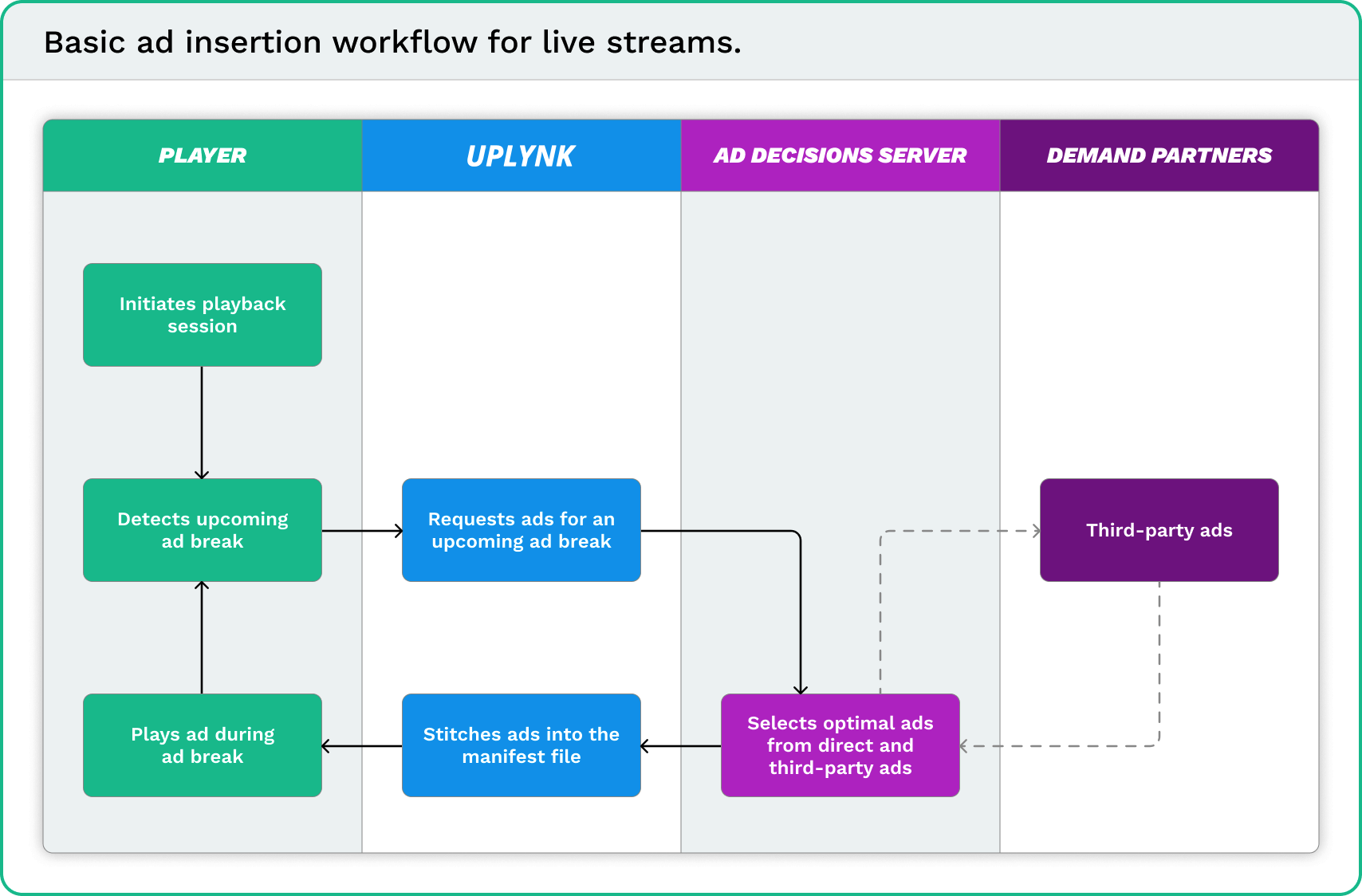
- During Playback: Mid-roll ads play within a live stream. A player requests ads whenever an upcoming ad break is detected, and the service stitches them into the live stream.
- After Playback: Post-roll ads play after a live event.
Video On-Demand (VOD)
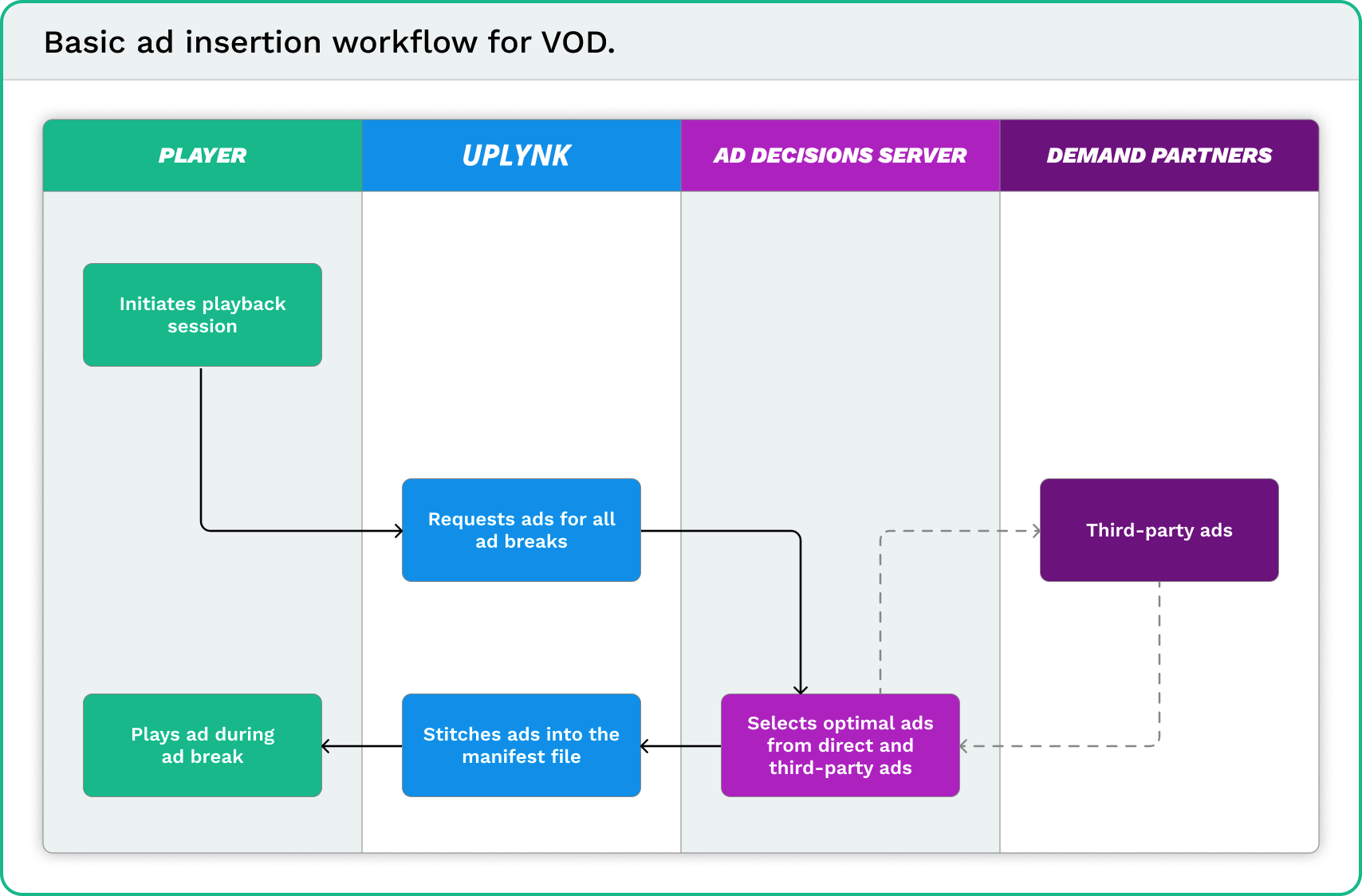
Upon initiating playback, the service determines the set of pre-roll, mid-roll, and post-roll ads that will be stitched into your on-demand content based on your ad configuration.
Insert mid-roll ad breaks into a VOD asset at a regular cadence, decided at playback time, with the ad_interval playback parameter.
Ads are stitched into your content to provide a seamless transition between your content and ads. This also prevents ad blockers from blocking your ads.
Ads are automatically upscaled to the highest quality rate in your encoding profile. Our service upscales your ads without altering their frame rate.
How Does It Work?
The ad insertion workflow for live streams and VOD is similar. The only difference is the timing of ad retrieval.
- Live Streams: The service requests ads whenever it detects an upcoming ad break.
- VOD: The service requests ads for all ad breaks upon initiating playback.
Workflows
Third-Party Ad Servers
Request ads from one or more of the following third-party ad servers:
Setup Overview
Perform the following steps to integrate a third-party ad server with live content, VOD, or both:
-
Create an ad configuration for the desired third-party ad server.
- How?
- Navigate to the Ad Server page.
- Select + Ad Config.
- In the Ad Config Name option, enter the desired name for the ad configuration.
- From the Select Ad Server option, select the desired third-party ad server.
- Select Add.
- Fill out all required parameters (e.g.,
serverURL). - Select Save.
- How?
-
Set up a slicer to add the desired ad breaks to your live content, VOD, or both.
-
Set up a third-party ad server to include ad-specific metadata as query string parameters of the playback URL.
-
Set up your media player to add pre-roll, mid-roll, and/or post-roll ads to your media via query string parameters in the playback URL.
-
Optional: Set up your media player to define how ad breaks will be handled via query string parameters in the playback URL.
-
Optional: Set up your media player to send verification data to an ad verification system via Open Measurement Interface Definition (OMID).
-
Apply a digital signature after the third-party ad server has added the desired query string parameters to the playback URL.
Ad break duration may be specified for an asset that is played back within a live stream. However, the length of an ad break for an asset that is played back as on-demand content is determined by the response from the ad decision server. As a result, you may not specify ad break duration for VOD and ad slate will not be inserted during playout. For example, if the ad decision server returns a 45.35 second ad response, then the duration of the ad break will be 45.35 seconds.
Ad-Specific Metadata
Query string parameter names vary by third-party ad server.
Include metadata describing each ad as query string parameters in the playback URL provided by the third-party ad server.
Example:
The following sample playback URL identifies an ad server configuration (i.e., VideoSSP) and a keyword (i.e., marketing).
https://content.uplynk.com/ext/1/myasset.m3u8?tc=1&exp=1358341863&rn=4114845747&ct=a&eid=mtg_003&oid=a735c65ea4041685bc74c0a375326cc5&ad=VideoSSP&keywords=marketing&sig=37e...cbf
What's Next
Updated about 1 month ago