
Asset Preview
Preview and test asset playback with URL parameters directly in the Uplynk CMS.
You can preview your asset within the Uplynk platform. This allows you to test and verify your asset, including URL parameters, before deploying it in a production environment.
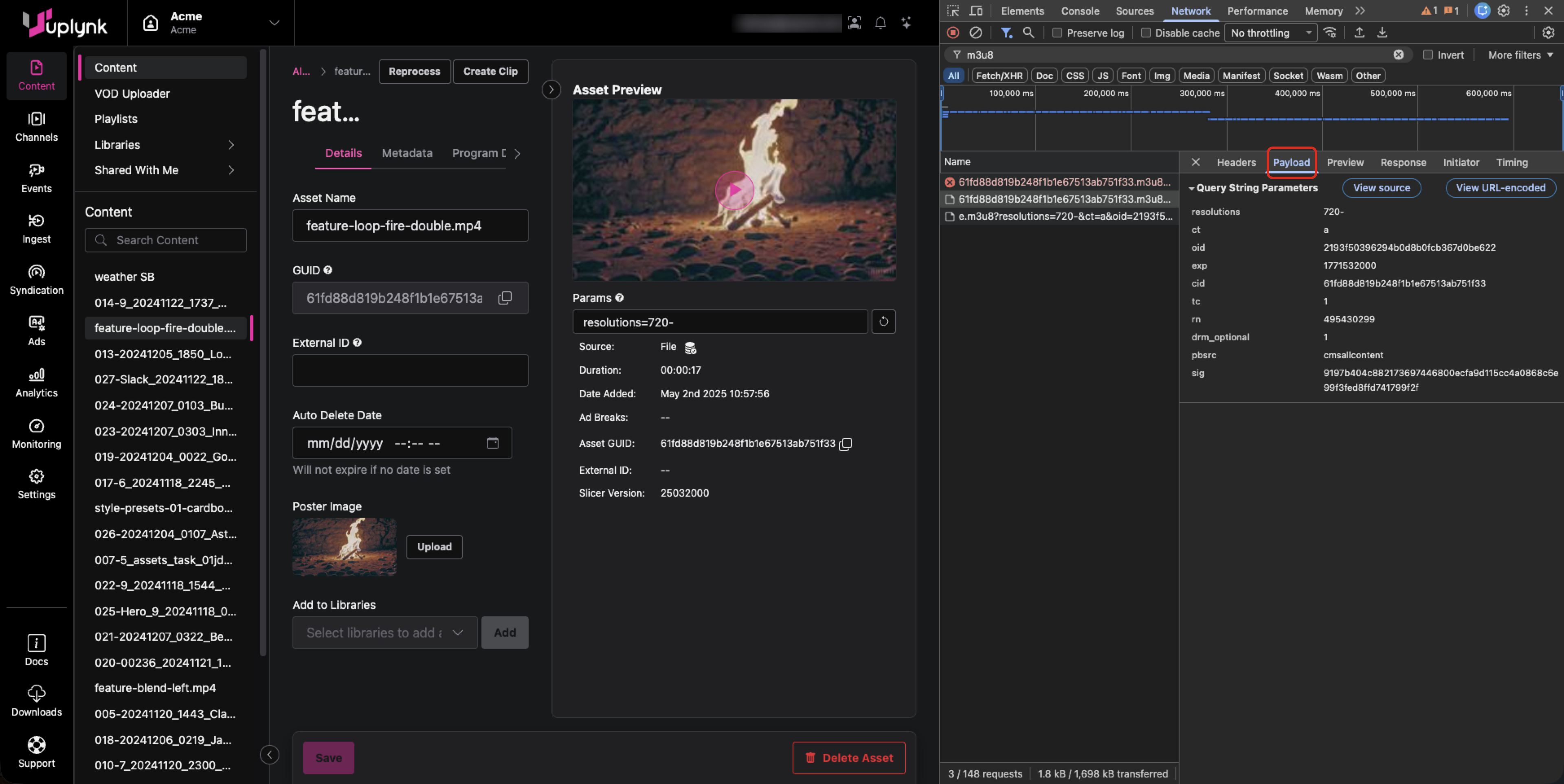
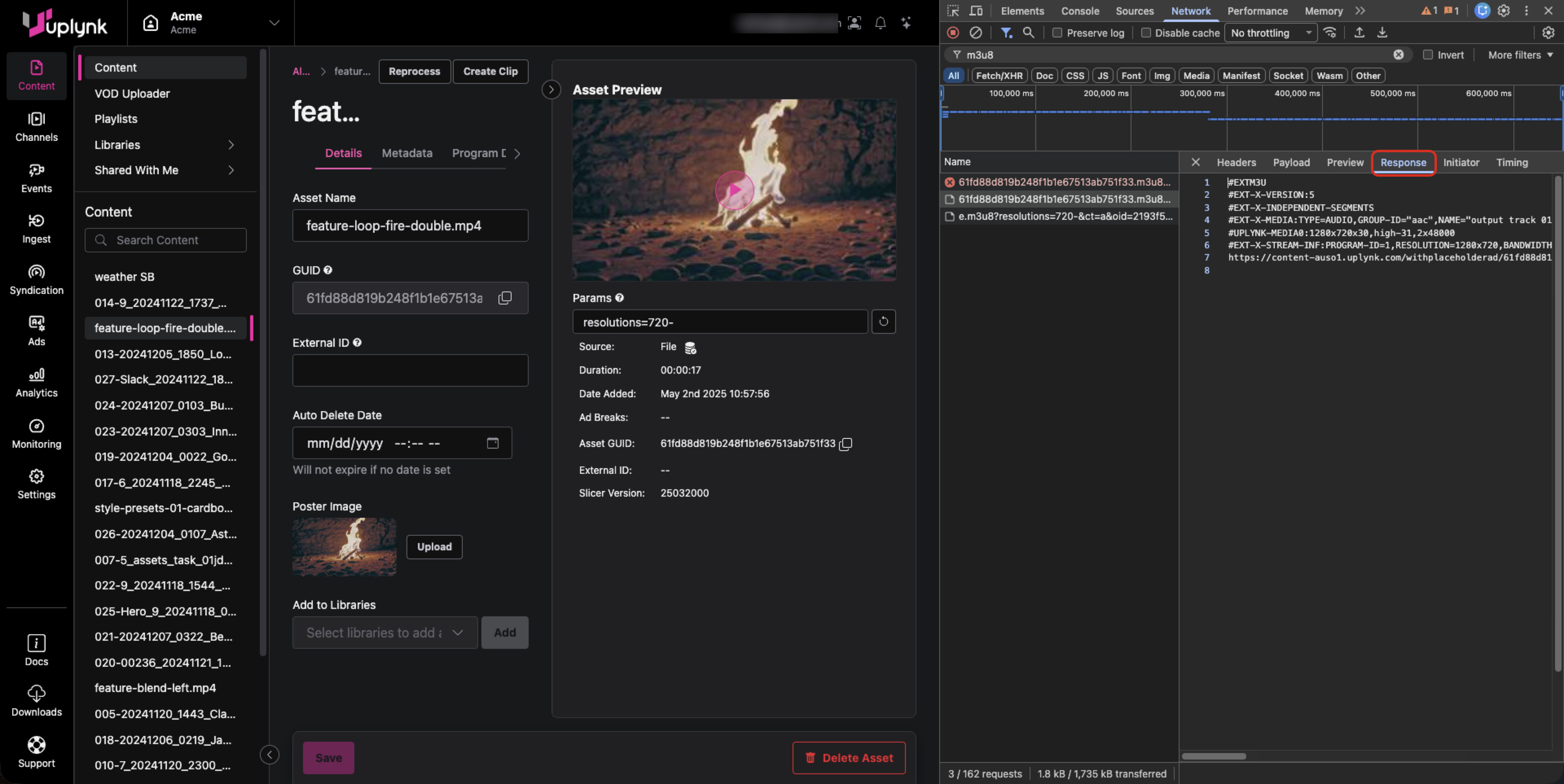
Using the developer tools built into your web browser, you can view the actual HTTP requests for playback with your desired URL parameters and the returned manifests.
Test Video Playback in the Uplynk CMS
To play back an asset in the Uplynk CMS:
- Go to the asset details page.
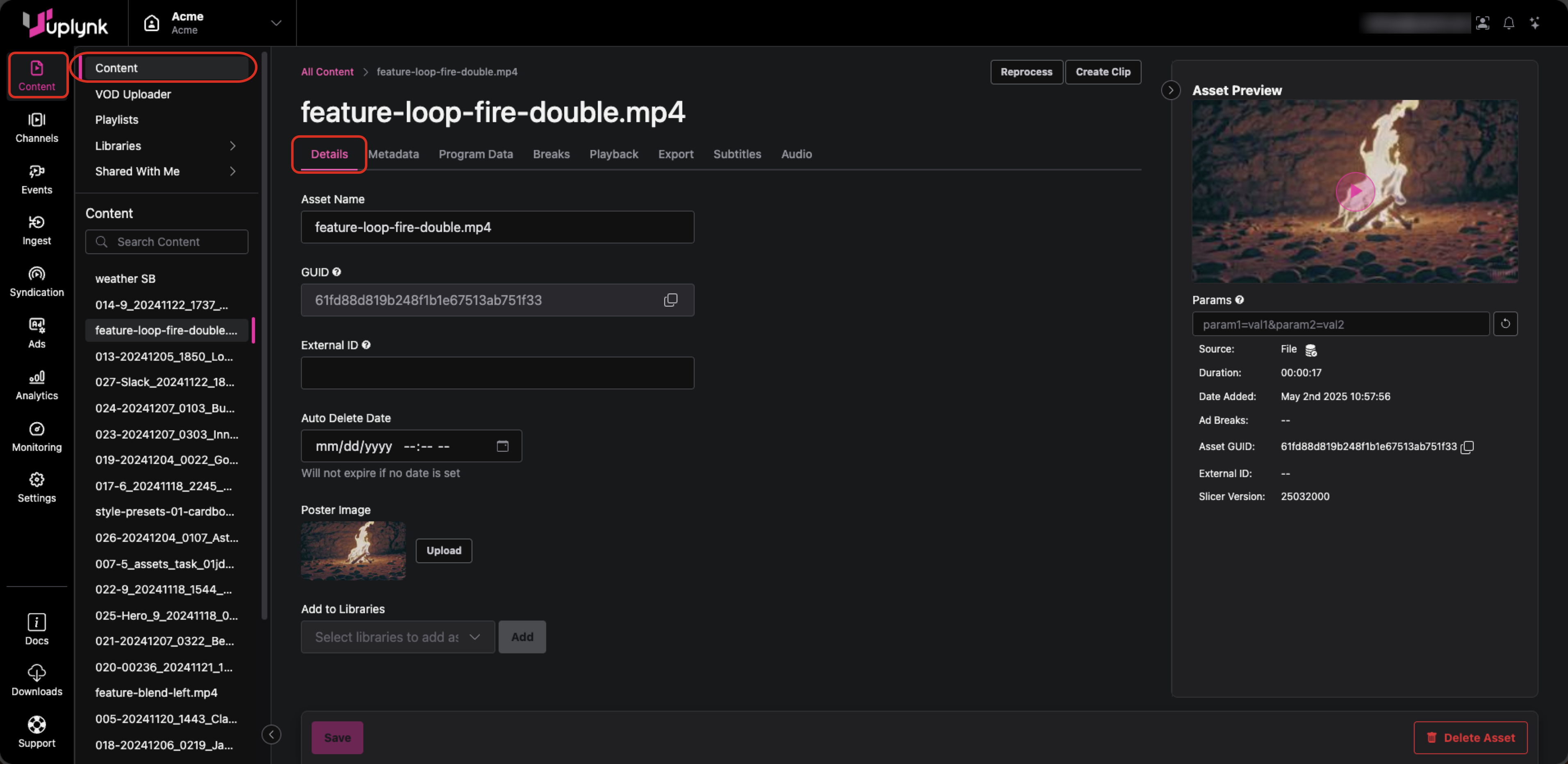
- At the top-right, observe the image under Asset Preview and hover the cursor over it.
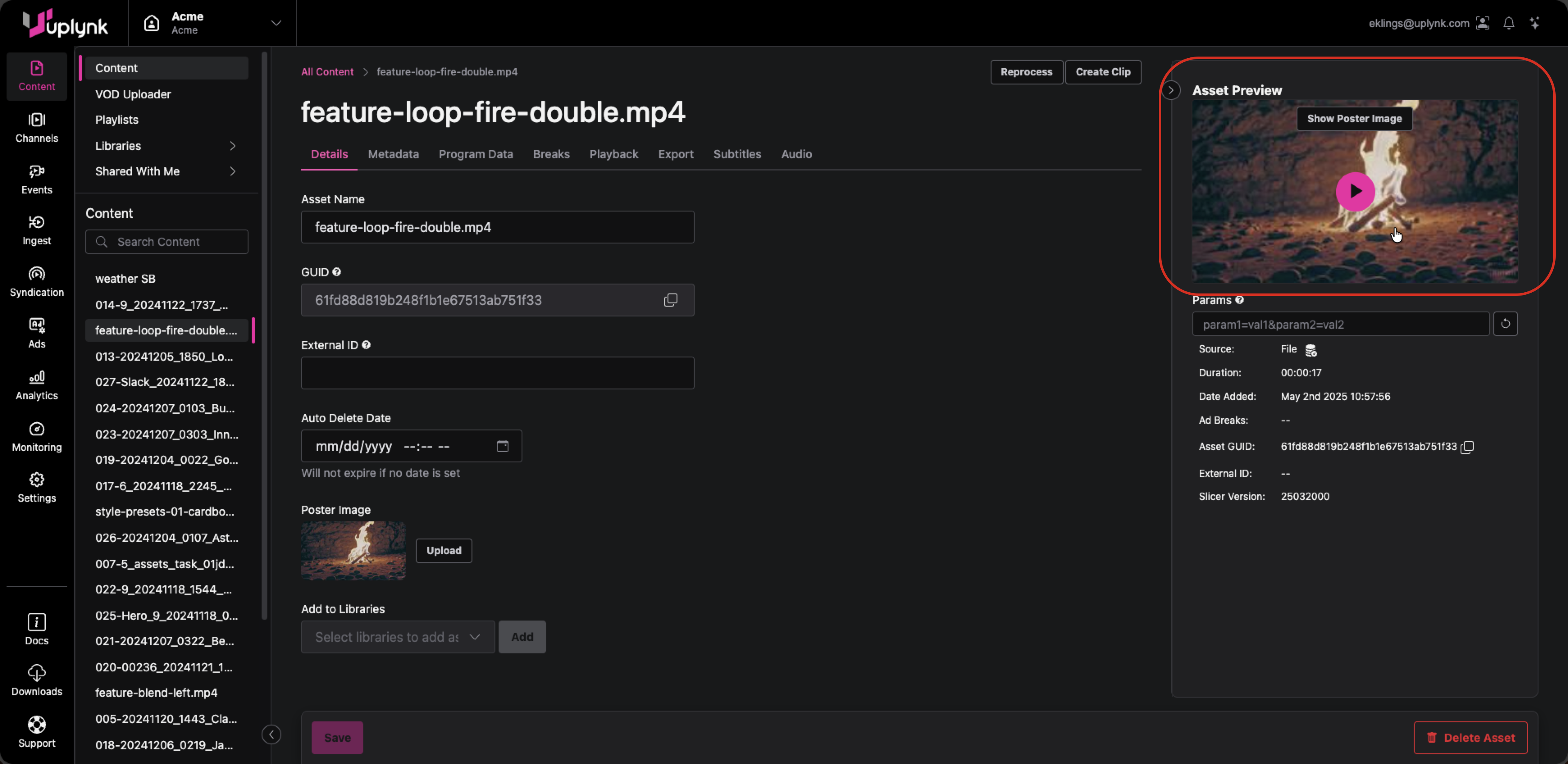
- If there is no Play icon in the image, the poster image is being displayed. To switch to the video player, move your cursor over the image and a Show Player button will appear. If it does not appear, select the image to force CMS window focus. Select the Show Player button and the Play icon will appear on the image.
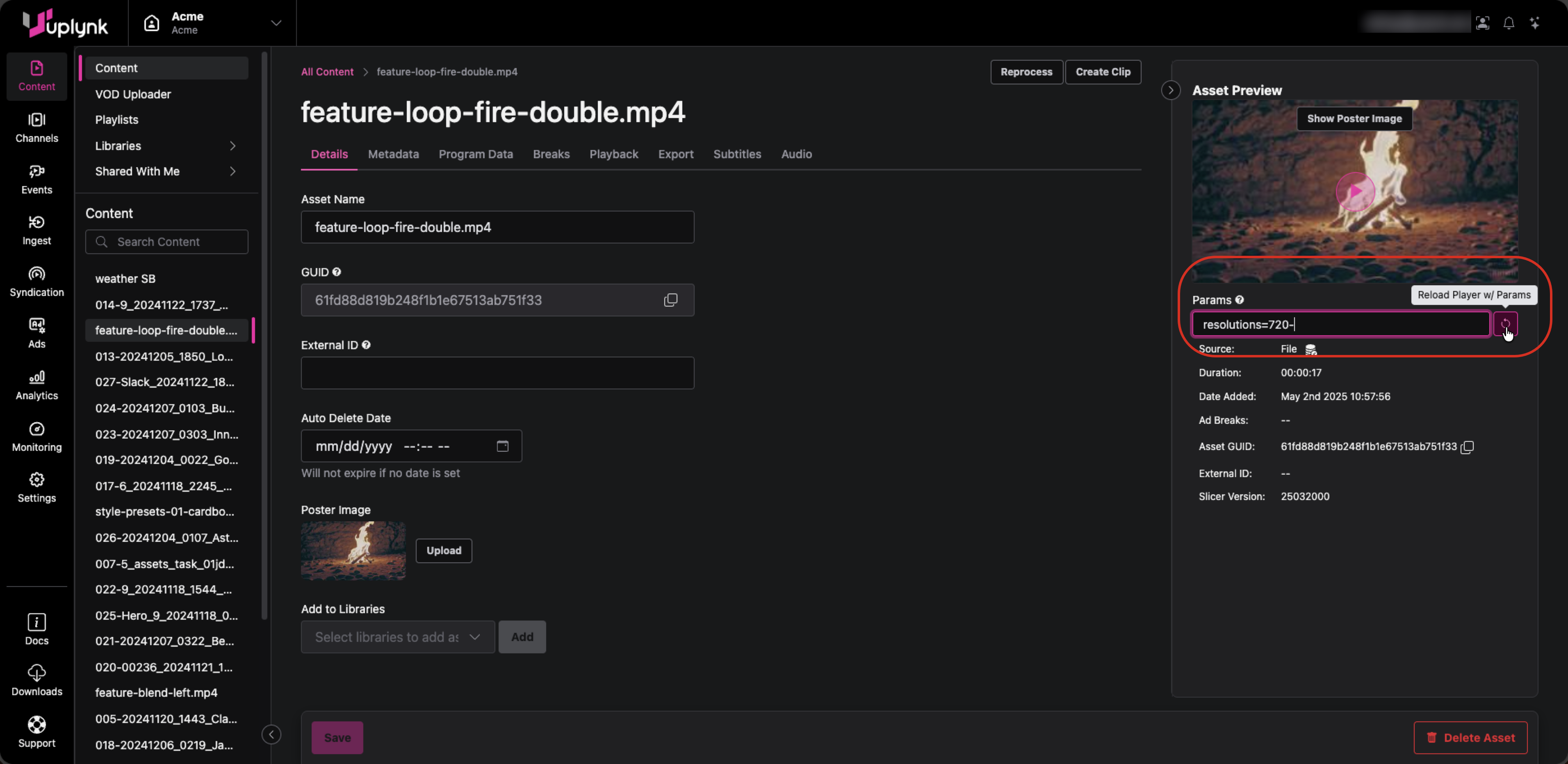
- Enter any desired Uplynk URL parameters in the Params box and select the Reload Player w/ Params button to its right. Uplynk URL parameters are described in Customizing Playback (Playback Customization Parameters).
- Select the Play icon on the image.
Viewing VOD Asset Manifests
The instructions below are for Google Chrome, but Apple Safari and Microsoft Edge are similar.
To view the HTTP requests to Uplynk and the returned manifests:
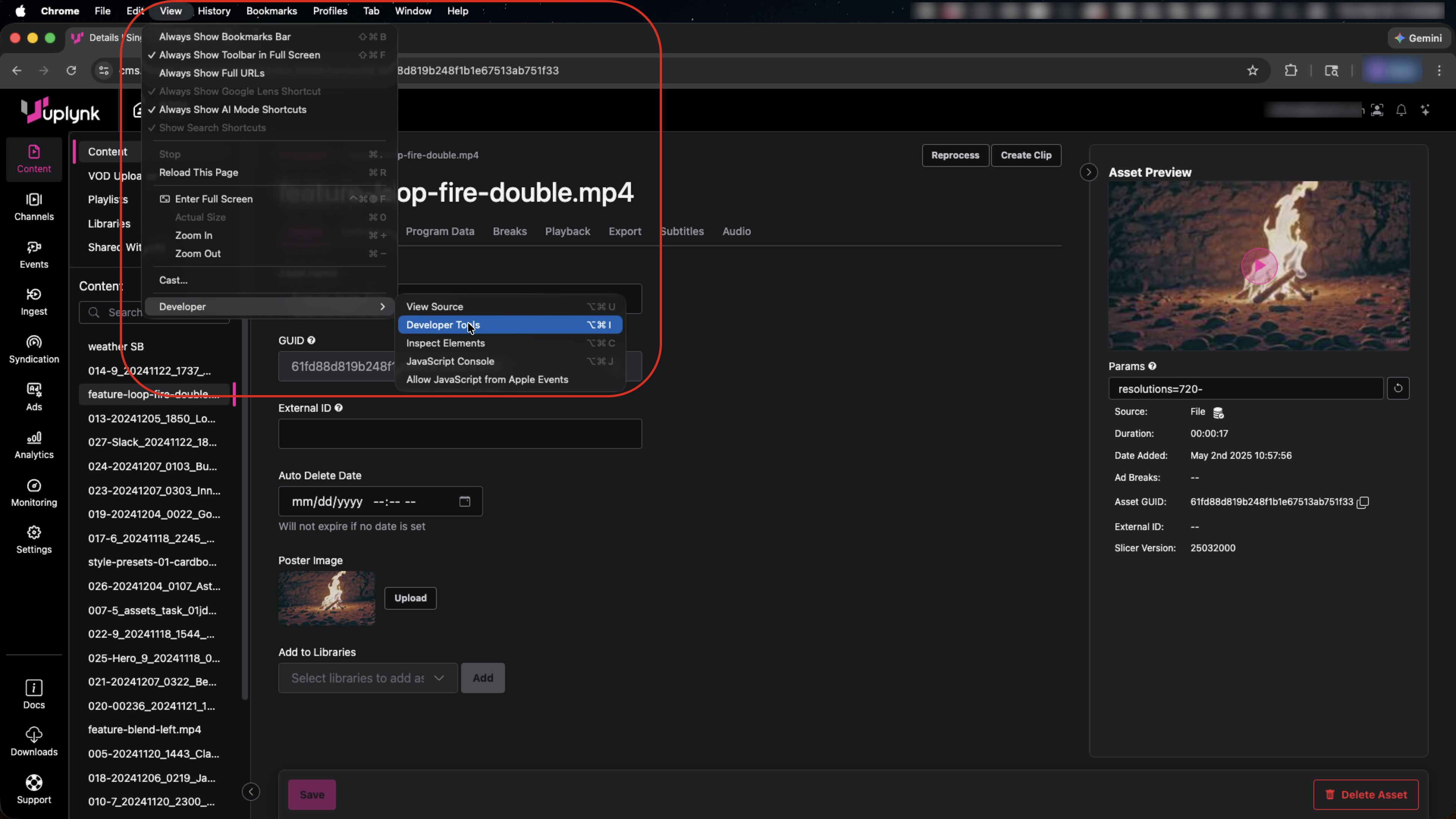
- In the browser menu, select View->Developer->Developer Tools.
- In the Developer Tools, select the Network tab.
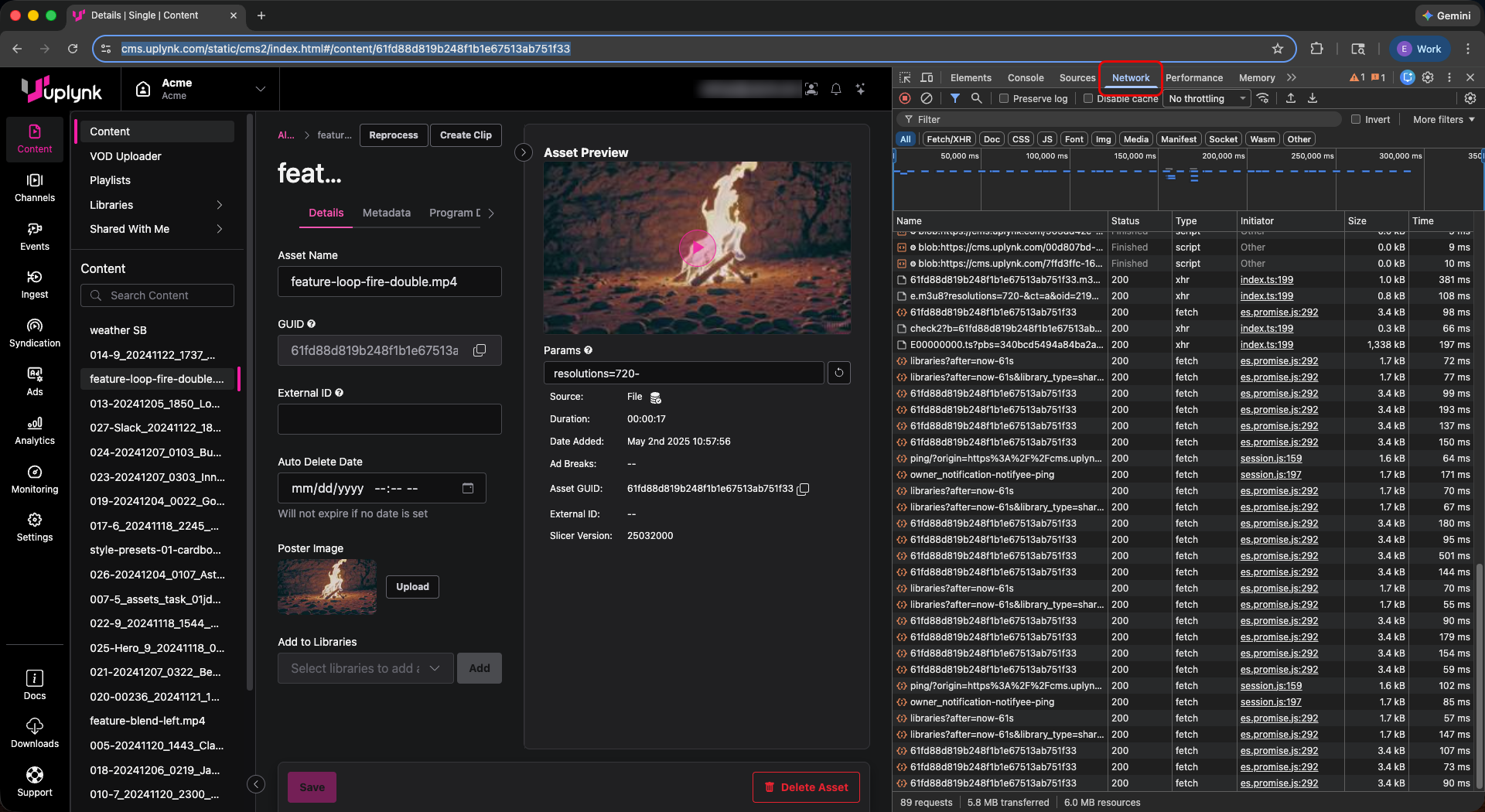
- To make it easier to see the new HTTP calls for manifests, enter m3u8 in the filter box and select the Clear network log icon.
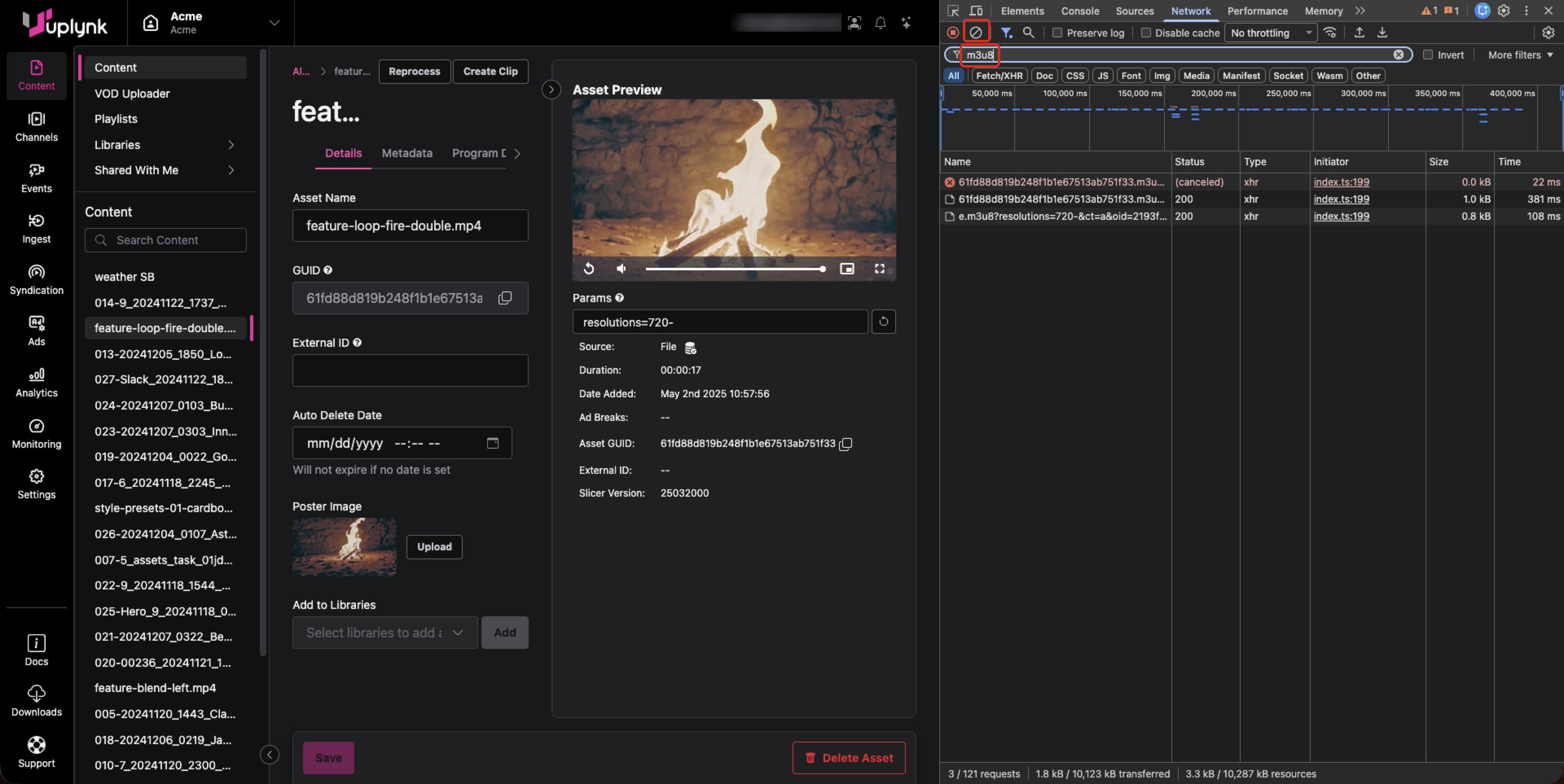
- Select the Reload Player w/ Params button to force a reload of the VOD manifest in the CMS. The manifest calls will appear in the Developer Tools. The first 200 return is the top-level manifest.
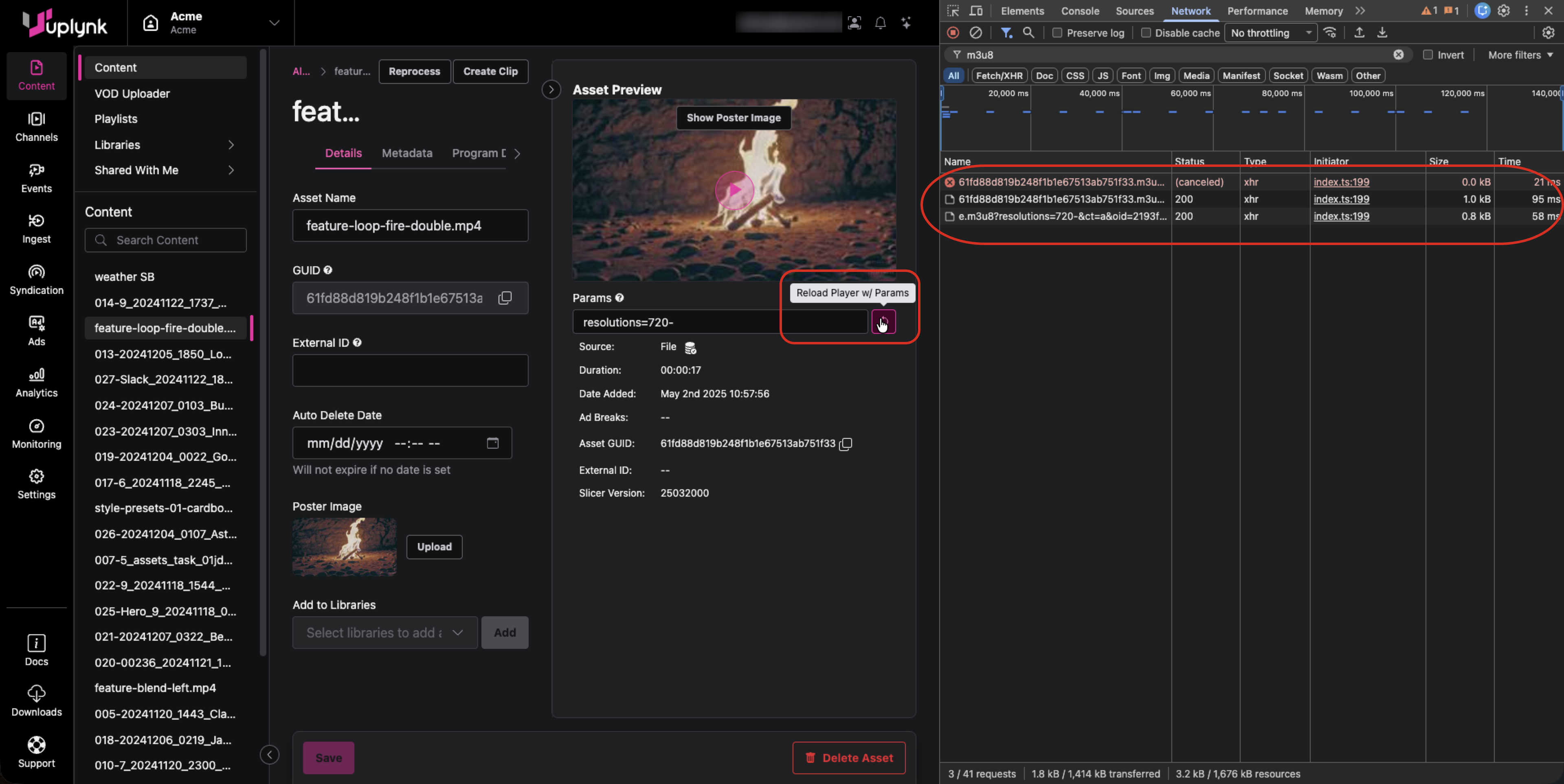
- Select the top-level manifest call to view the HTTP headers on the Headers tab.
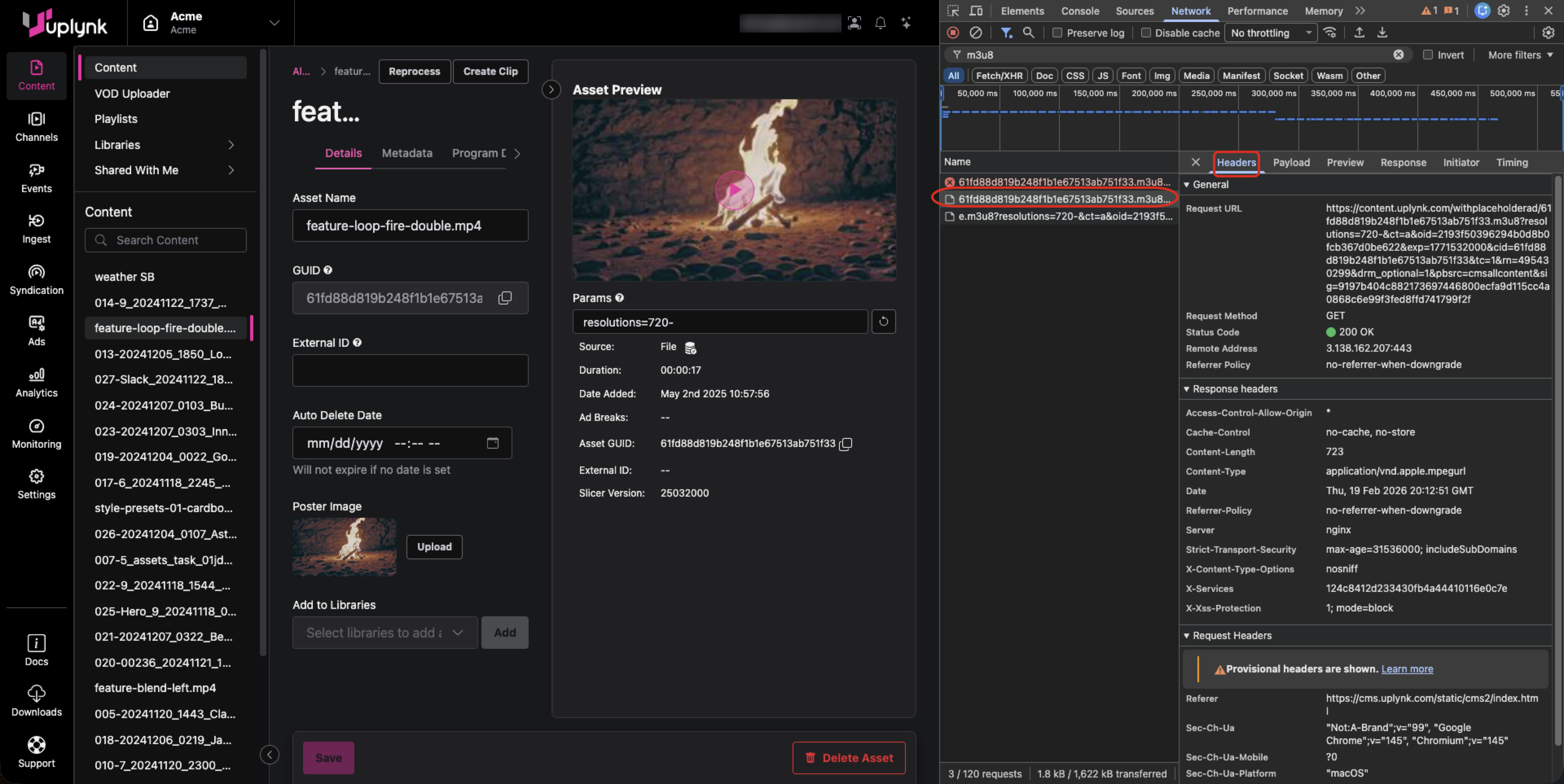
- Select the Payload tab to view the URL parameters.
- Select the Response tab to view the HLS manifest.
Updated about 2 months ago
Did this page help you?