
How Blackout Works
Blackout notifications, the streaming request flow, audiences, and blackout rules.
How Does It Work?
Apply blackout to programs as needed. Blacked-out viewers stream alternate content.
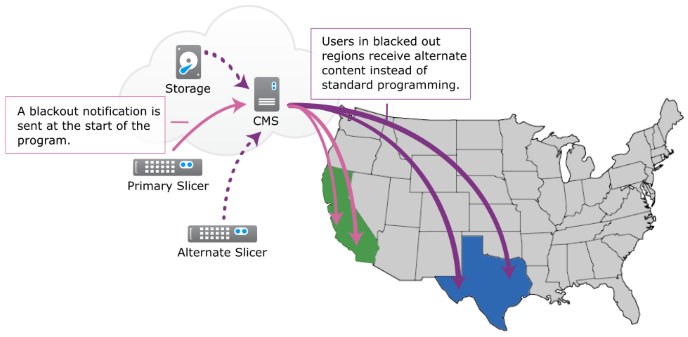
Blackout Notification
At the start of a program that requires blackout, you must send an ID (blackout_id) to the Live Slicer. This ID should identify a rule associated with the live channel. The rule identifies an audience (a grouping of viewers) and whether the regularly scheduled program or alternate content will be streamed to those viewers.
Streaming Request
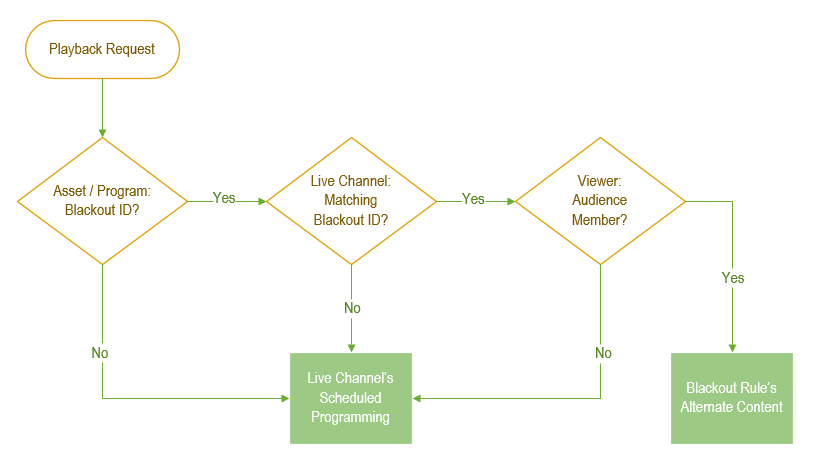
A viewer requests a live channel's programming through a custom media player. The response sent to the media player is a URL that varies according to whether blackout is applicable. Blackout is applied when all of the following conditions are true:
- Blackout ID: A blackout ID has been defined for the requested programming.
- Live Channel: The live channel has been configured to apply one or more blackout rules for the blackout ID associated with the requested programming.
- Viewer: The viewer satisfies the criteria defined within the audience for the blackout rule(s). This criteria consists of location information (zip code, DMA, or country), IP address, and/or device.
If all of the above conditions are true, the first applicable blackout rule determines the alternate content streamed to the viewer. Otherwise, the regularly scheduled program is streamed to the viewer.
Blackout is applied on a per-program basis. If a blackout ID is not provided with the channel's next scheduled program, all viewers can play it back. Otherwise, the above workflow determines the type of content each viewer streams.
The above workflow is illustrated here.
Setting up blackout requires:
- Defining one or more audiences.
- Defining one or more blackout rules.
- Setting up blackout on the desired live channel.
- Setting up a media player.
- Sending a blackout notification to the Live Slicer.
Audiences
An audience identifies viewers that will be blacked out via one or more of the following criteria:
- IP address: Specify an IP address (IPv4) or subnet (CIDR notation).
- Zip code: Specify a 5-digit United States zip code.
- Designated market area (DMA): Specify a United States DMA by its ID. Request Nielsen DMA data.
- Device: Specify a name or description for the desired device. Values defined within the Devices option are compared against the value defined for the
repl.cbdeviceplayback URL parameter. - Country: Specify a two-character country code (ISO 3166). Country codes are automatically capitalized. View a list of country codes.
A viewer's location (zip code, DMA, and country) is either automatically determined by IP address or manually defined in the playback request.
Factors such as proxy services, VPNs, and the nature of geolocation technology may result in an inaccurate assessment of a viewer's zip code or DMA when calculating location by IP address. This may incorrectly allow viewers access to content that should have been blacked out. Therefore, it is strongly recommended to use a device's location services to identify a viewer's location and then submit this information when a media player requests a stream.
Match Option
The Match option determines whether a viewer must meet any, all, or none of the specified criteria to qualify as a member of the current audience.
-
Any: This match condition requires that a viewer satisfy at least one entry within one or more categories.
Example:
If an audience has been configured to match on zip codes, country codes, and DMAs, a viewer qualifies for membership when the request originates within one of the specified zip codes, country codes, or DMAs.
-
All: This match condition requires that a viewer satisfy at least one entry within each defined category.
Example:
If an audience has been configured to match on zip codes, country codes, and DMAs, a viewer only qualifies for membership when the request originates within one of the specified zip codes, country codes, and DMAs. If the request does not satisfy all defined categories, it does not qualify for membership.
-
None: This match condition requires that a viewer not satisfy any entries within the defined categories.
Example:
If an audience has been configured to match on zip codes, country codes, and DMAs, a viewer only qualifies for membership when the request does not originate within any of the specified zip codes, country codes, and DMAs. If the request satisfies any of the defined categories, it does not qualify for membership.
Set Up a Basic Audience
-
Navigate to the Audiences page (Live Channels > Audiences).
-
Select + Create Audience.
-
In the Audience Name option, enter the name by which this audience will be identified.
-
Under the Type option, verify that the Single mode has been selected.
The Multiple mode allows you to create a group of audiences.
-
Select Create & Edit.
-
In the Match option, select whether a viewer qualifies for membership when the request matches any, all, or none of the specified criteria.
-
Add the desired IP addresses, zip codes, designated market areas (DMAs), devices, and/or country codes.
- Select + under the desired category.
- Enter one or more entries. Separate multiple entries with a comma (e.g., 90405,90503,90210).
- Select Add.
- Repeat these steps for each desired category.
-
Select Save to update the audience configuration with these changes.
Grouping Audiences
You can group multiple audiences together, allowing you to apply a blackout rule to multiple audiences.
Sample Scenario
You have created an audience for each major metropolitan area in a state. However, you would like to apply a blackout to the entire state. You can accomplish this by creating a superaudience that groups together metropolitan-specific audiences for that state.
To Set Up a Superaudience
-
Navigate to the Audiences page (Live Channels > Audiences).
-
Select + Create Audience.
-
In the Audience Name option, enter the name by which this audience will be identified.
-
Under the Type option, verify that the Multiple mode has been selected.
-
Select Create & Edit.
-
In the Match option, select whether a viewer qualifies for membership when the request matches any, all, or none of the specified audiences.
-
Add each desired audience by selecting it from the Available Audiences list and then selecting >.
-
Select Save to update the audience configuration with these changes.
Blackout Rules
A blackout rule defines when and how a blackout is applied to blacked-out content. Specifically, it:
- Identifies viewers via an audience or superaudience.
- Determines the alternate content streamed to blacked-out viewers. This alternate content may consist of:
- Slate: Conditional blackout slate will be streamed.
- Channel: Content sourced from an alternate live channel.
- Asset: On-demand content from the CMS library.
- Slicer: Media processed by an alternate Live Slicer.
Create a Blackout Rule
-
Navigate to the Audiences page (Live Channels > Audiences).
-
Select + Create Rule.
-
In the Rule Name option, enter the name by which this blackout rule will be identified.
-
Select Create & Edit.
-
From the Alternate Content Type option, choose the type of source for the alternate content streamed to blacked-out viewers:
-
Slate: Indicates that conditional blackout slate will be streamed.
-
Channel: Indicates that content sourced from an alternate live channel will be streamed. Set the Alternate Content ID option to the desired channel ID or external ID.
To find a live channel ID: From the CMS, select the Live Channels tab. Select the desired live channel. Basic options and live channel information are displayed on the Details tab. Find the live channel's system-defined ID under the GUID label.
-
Asset: Indicates that on-demand content from the CMS library will be streamed. Set the Alternate Content ID option to the asset ID or external ID for the desired CMS asset.
To find an asset ID: Navigate to the CMS library by selecting the Content tab. Select the desired asset. The asset ID is listed under the GUID label.
-
Slicer: Indicates that media processed by an alternate Live Slicer will be streamed. Set the Alternate Content ID option to the ID for the desired Live Slicer.
A Live Slicer's ID is defined by the
slicerIDparameter within its configuration file.
-
-
Use the Loop option to determine whether alternate content will be looped.
This option must remain enabled when broadcasting slate.
Disabling this option broadcasts slate when alternate content is shorter than the scheduled program.
-
Optional: In the External ID option, enter the external ID by which this blackout rule will be identified.
-
Select + Add Audience to display the Select Audience dialog box.
-
From the Available Audiences list, select the desired audience or superaudience and then select Select.
-
Select Save to apply your changes to the blackout rule.
Updated about 2 months ago