
Prebid
Reduce start-up delay by requesting ads before playback begins.
Prebid
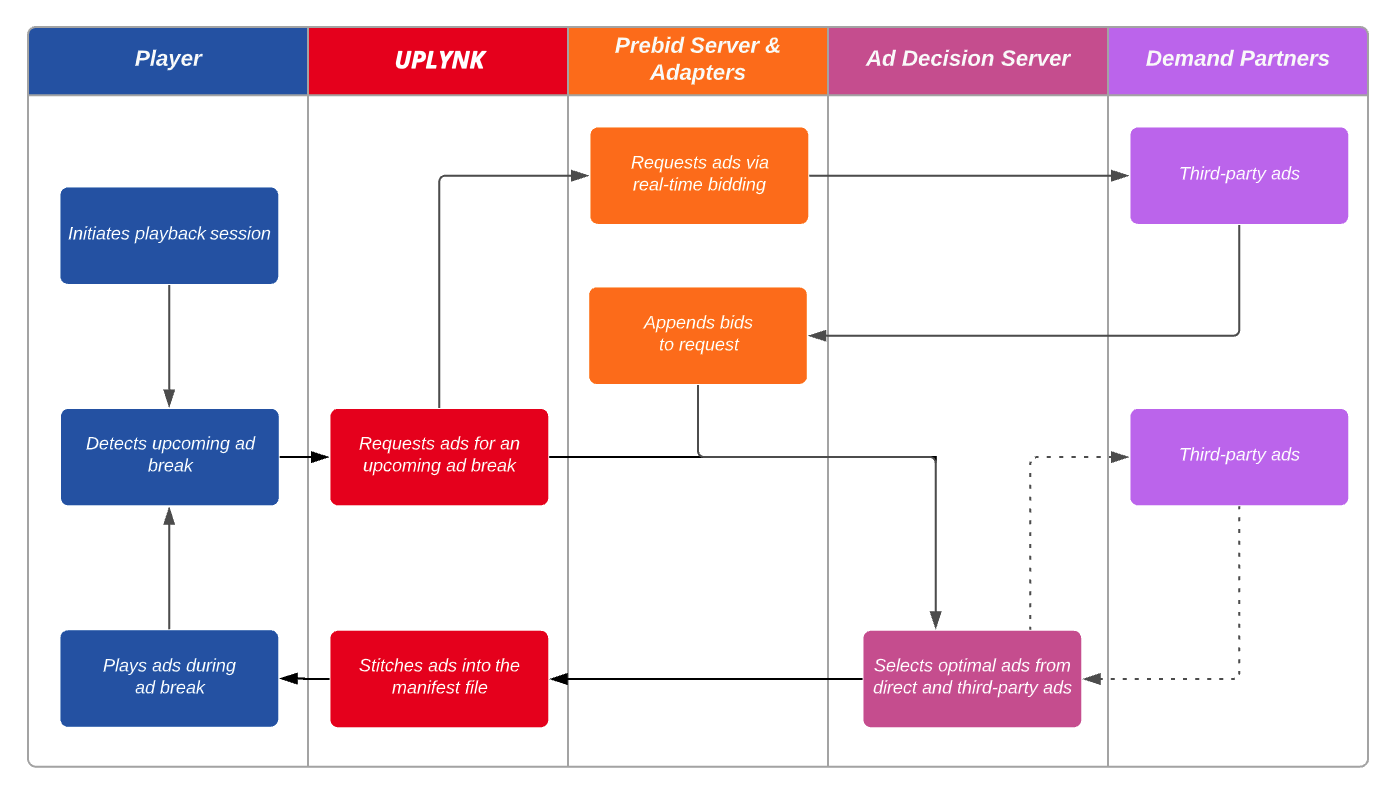
Maximize content monetization by leveraging the Prebid service to ensure that ads corresponding to the highest value bids are served to your viewers. Prebid seamlessly inserts an additional step at the start of your ad workflow to ensure real-time bidding (RTB) for your ad supply. Your request for ads, along with these bids, is then submitted to the ad decision server. This allows an ad decision server to choose from:
-
Direct ads: Ads purchased in bulk through a prenegotiated deal. An ad decision server typically prioritizes direct ads over third-party ads (standard).
-
Third-party ads (standard): Ads generated by demand partners through real-time bidding (RTB) requested by an ad decision server. If an ad decision server prioritizes direct ads, it will not initiate RTB, preventing bids from advertisers without direct buys from being considered.
-
Third-party ads (Prebid): Ads generated by demand partners through real-time bidding (RTB) requested by the Prebid service. These bids are always submitted to the ad decision server.
Prebid Workflow for Live Streams
Prebid Workflow for VOD
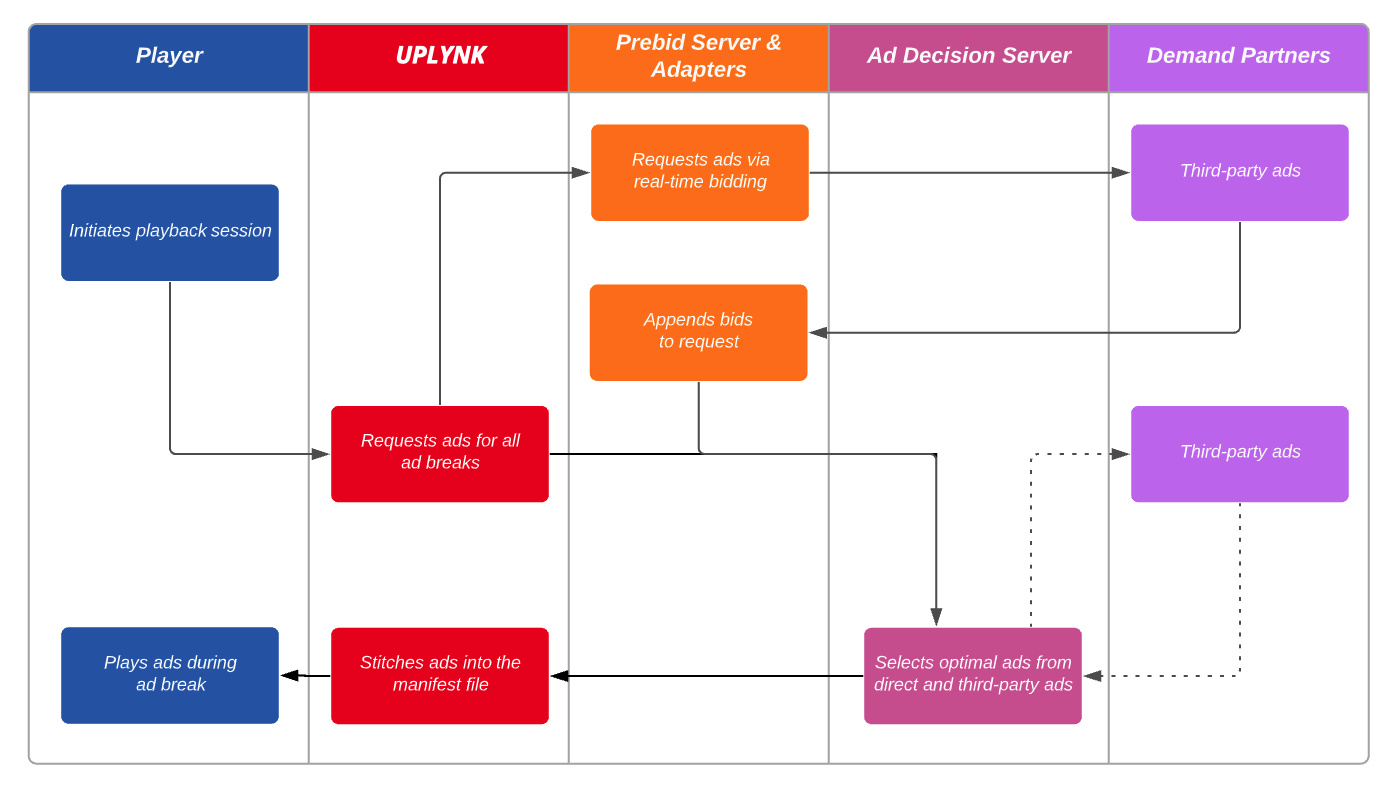
Prebid grants more flexibility to your ad decision server by allowing it to choose from a wider variety of bids to determine the optimal set of creatives to fill your ad breaks. The benefits of using Prebid are:
It maximizes content monetization by allowing bids from your demand partners to always be evaluated alongside direct ads.
It increases viewer engagement and reduces ad fatigue by diversifying the set of ads served to your viewers.
Setup
- Contact your account manager to activate the Prebid feature.
- Set up a Prebid server.
View Prebid documentation on how to set up a Prebid server. - Set up an adapter within your Prebid server for each desired demand partner.
View Prebid documentation on how to set up an adapter. - Define a Prebid configuration for your Prebid server.
- Navigate to the Prebid Server page via Settings > Prebid Server.
- Select + Prebid Config.
- From the Prebid Config Name option, assign a name to this configuration.
- Select Create.
- Optional: From the podconfig.configid option, indicate the ID for the desired custom Prebid configuration.
- Contact your account manager if you would like to set up a custom Prebid configuration. Once configured, your account manager will provide its ID.
- From the URL option, enter a URL that points to your Prebid server.
- Optional: Restrict bidding to ads that satisfy predefined criteria.
- From the pricegranularity.range.max option, define the maximum price for a bid in cents.
- From the pricegranularity.range.increment option, define how similarly priced bids will be grouped. Define the maximum number of cents by which bids in the same group may differ.
- Use a larger value to reduce the number of line items that you will need to define within your ad decision server to target bids.
- From the includebrandcategory.publisher option, indicate the ID assigned to your organization by Google Ad Manager.
- This option is required when using Google Ad Manager as your ad decision server.
- Select Save.
- Add an
ad.prbdquery string parameter to the playback URL and set it to the name of the Prebid configuration, as defined in step 4, that identifies your Prebid server and provides bidding instructions.
ad.prbd={Prebid Config Name}
Example:
ad.prbd=myPrebidServer
- Create line items that target bids within your ad decision server.
Updated about 2 months ago